The attachments library is where every file in your vault lives in one place. It opens as a full-pane view in the center of the window, the same space your notes use. You leave it by opening a note again; there is nothing to close.
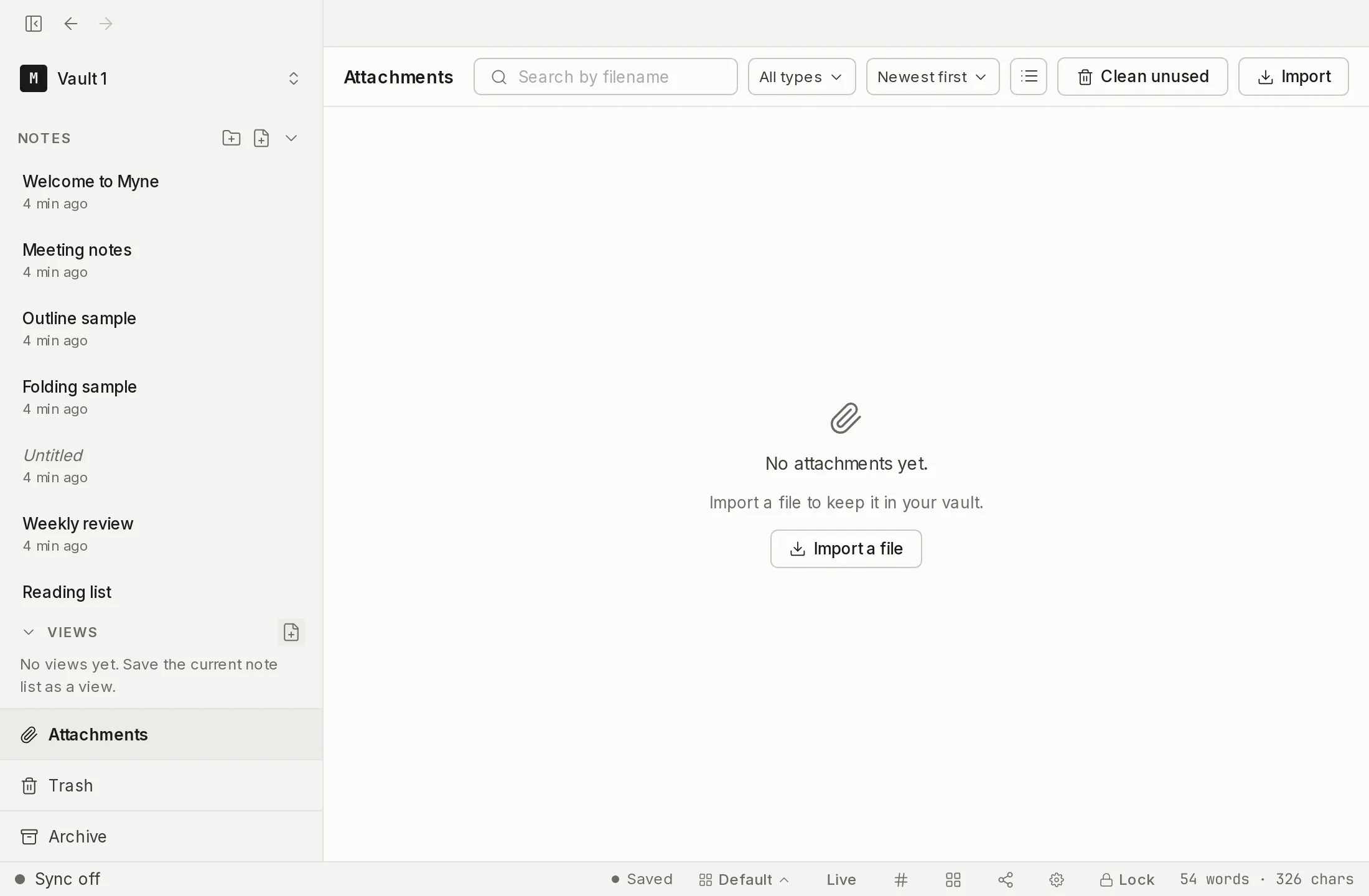
Opening the library
Open it from the Open attachments… command in the palette, or from its button in the sidebar.
Browsing
The library shows your attachments as a grid or a list. To find one:
- Search by filename: the search box matches file names (it does not look inside the files).
- Clear a search with the × in the search box. When nothing matches, the empty state offers the same clear-search action; when the vault has no attachments at all, it offers Import instead.
- Filter by type: All types, Images, PDFs, Audio, or Other. A voice note or an imported audio file is Audio. Video, documents, archives and everything else are Other.
- Sort: Newest first, Oldest first, or by name (A-Z / Z-A).
In list view the columns are Name, Type, Size, Created, and Used in, and the header stays put as you scroll.
Seeing where a file is used
Each attachment shows used in N notes, computed from your current notes — rebuilt each time you unlock, so it is right from the first look rather than after a save. The count is what you would see in the sidebar: conflict copies, trashed, archived and template notes are not counted, so one note that has a conflict copy is listed once, not twice. Open the count to jump straight to a note that uses the file. A file that no note embeds shows zero references; it is not deleted on its own and stays in the library until you remove it.
Cleaning unused attachments
Deleting a note never deletes the files it embedded, so files with zero references can build up. The Clean unused attachments command, run from the library, finds every file that nothing in the vault still references. It reads your notes and your snapshots at the moment you run it, so a file that has gone from a note but survives in a snapshot you could restore is never offered for cleanup — restoring that snapshot would otherwise bring back a note pointing at a file that no longer exists. If any note or snapshot can’t be read, the sweep refuses rather than guessing, and nothing is deleted. What it does find, it shows you as a list to review before anything happens.
On a device that hasn’t finished its first sync, Clean unused refuses to run at all: it would be deciding what is unused from a fraction of your notes. It says so, in those words: “Finish syncing first. This device doesn’t have all your notes yet, so it can’t tell which attachments are unused.” Nothing is deleted. Wait for the sync to finish and run it again.
Deleting the files you confirm is permanent and cannot be undone, so read the list before you confirm. When you do confirm, Myne re-checks every note before erasing anything, so a file that became used between the review and the confirm is skipped instead of deleted; the closing summary reports what was removed, how much space that freed, and how many were skipped as now in use. Everything else on the list is erased from the vault. There is no trash tier for a cleanup, so the review-and-confirm step is the only undo.
Acting on a file
A per-item menu (the ⋮ button, or a right-click anywhere on the card or row) gives you Preview (images and PDFs only), Export, Rename, and Delete, the same actions covered in Attachments (rename changes the display name only; delete is explicit and leaves a tombstone in any note that embedded the file). On a computer, Export opens a native Save dialog and writes a plaintext copy of the file to a path you choose. On a phone or tablet you are not asked where it goes (see Limits, below). Either way the copy you save sits outside the vault and is no longer encrypted.
An audio attachment carries two more actions. Transcribe runs speech-to-text on this device; it is hidden when speech-to-text is off in Settings → Transcription. View transcription opens a transcript an earlier run already wrote — read-only, under the line “This transcript was made by a small model running on your device and may be wrong — check it against the audio.” That one stays available with speech-to-text turned off, because reading text you already have needs no model. Inserting a transcript into a note is a separate action, in the editor.
Importing from the library
You can bring a file in from the library with its Import attachment picker. Importing makes the file available; embedding it into a note still happens in the editor, the same as adding any attachment.
Limits
The library lists what this vault holds on this device. Attachment names, contents, and types are encrypted at rest — see Attachments for what a copy of the vault folder can still reveal about them. The search box matches file names only; it never reads inside a file to find a match.
Export is the point where a file leaves the vault’s protection: the copy it writes is decrypted and is no longer covered by your master password. On a computer it sits wherever you saved it. On a phone or tablet you are not asked, and it lands in the app’s own Documents folder; see Attachments for what that means for your phone’s cloud backup.
Clean unused decides from the notes and snapshots this device holds, which is why it refuses on a device that has not finished its first sync. Once a sweep has erased a file, nothing inside Myne brings it back — only a backup taken before the sweep still contains it.