You can record a voice note inline from the editor with the /record command. The clip saves as an encrypted audio attachment and embeds at the cursor as an inline player you can play back in place. Recording runs locally on your device, and it stops if the vault locks or auto-locks.
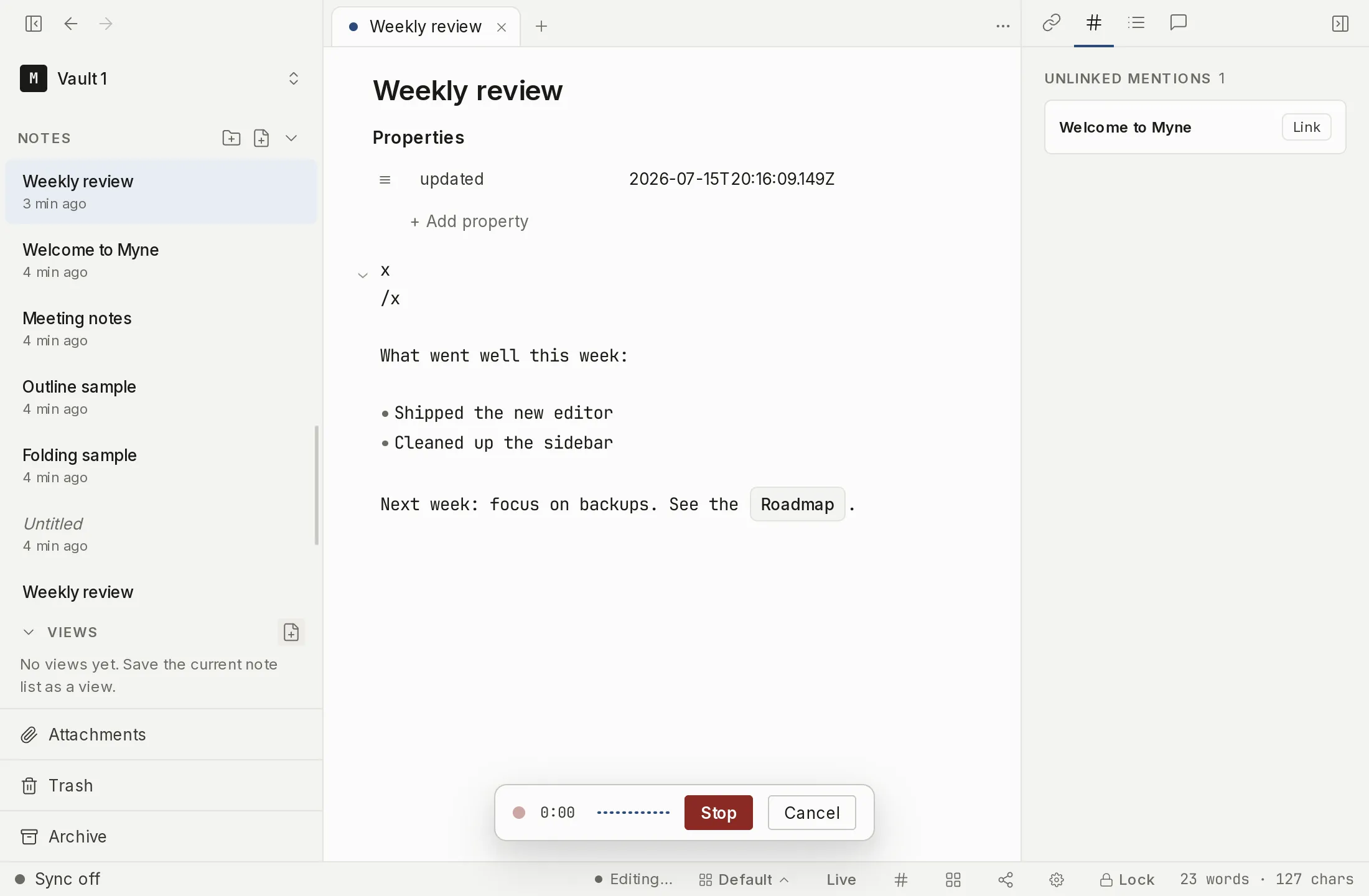
Recording a voice note
In the editor, type / and choose Voice note (the slash command, marked with a microphone icon). This arms microphone capture and mounts a floating recording bar. The bar shows a pulsing dot, an elapsed-time clock that starts at 0:00, a live waveform that moves with your input level, and Stop and Cancel buttons. There is no default keyboard shortcut; you reach it through the slash menu.
Choose Stop to keep the clip. Myne saves it as an audio/wav attachment and inserts an embed at the cursor, auto-named Voice note YYYY-MM-DD HH-MM-SS.wav from the time you stopped. Choose Cancel to discard it instead; nothing is saved when you cancel.
The inline player
The embed renders as an inline player with a play/pause control, a seekable waveform track, a 0:00 / 0:00 time readout, and a ⋯ overflow menu. The menu carries Export, Rename, Remove, and Reveal in library, the same actions used elsewhere for attachments, plus Transcribe in the desktop app while speech-to-text is on: that is the in-note route to a transcript. An audio file you bring in yourself (an imported audio/wav file) renders with this same player; a recorded voice note and an imported clip behave identically once they are in a note.
Microphone and silence handling
The moving waveform is also your “is it working” signal. On some systems a denied microphone shows up as silence rather than an error. If the bar stays near-silent for a short grace period, it warns No audio detected. Check your microphone. If you stop a recording that captured no sound, Myne discards the silent clip rather than saving an empty one. If you see this warning, check that Myne has microphone access in your operating system’s settings, then try again.
A long recording does not fail at the attachment size limit. When a clip reaches the point where it would stop being usable, Myne finalizes it and continues into the next one with no dropped samples, so the recording becomes a sequence of ordinary embeds in order. That point is the 64 MiB attachment cap in almost every case. On a microphone reporting a low sample rate, it comes sooner, because a clip has to stay short enough to transcribe as well as small enough to store, and Myne takes whichever limit arrives first.
Limits
In the desktop app, microphone capture runs natively in the Myne core, not in the WebView that draws the editor: the recorded audio stays on the Rust side, where it can be wiped from memory, and it never enters the editor’s JavaScript heap. A phone or tablet has no such recorder, so there the app captures in the WebView, and the finished clip sits briefly in JavaScript memory on its way into the vault, where it cannot be wiped the same way. That is the same handling every other file you attach on a phone already gets. On both, the in-progress recording is held in memory only: Myne never writes a plaintext temporary .wav to disk while you record. The saved clip is an ordinary encrypted attachment, the same on-disk format as any other attachment; there is no new file format for audio.
Recording requires an unlocked vault and only runs in the main window. It is aborted when the vault locks, when auto-lock on idle triggers, and when a vault is deleted, so the microphone never stays active past your unlocked session.
What Myne does not protect against is forensic capture of device memory. The in-memory recording buffer and the decrypted audio that playback hands to the editor are plaintext in RAM, and anything that can read your machine’s memory, swap, or hibernation image while the vault is unlocked is outside what Myne defends against — the same inherited limitation that applies to your decrypted notes.
Voice notes are attachments, so the attachment limits apply: see Attachments for how they are stored, and The attachments library for managing them.
Transcribing a voice note
A voice note’s audio is not searchable on its own. Transcription is on by default and does not depend on the AI opt-in — it has its own switch under Settings → Transcription, the Speech-to-text toggle. Transcribing is still an explicit action you run per clip, either from the note or from the attachments library, and Myne writes out the text of what was said. Once a note has a transcript, that text is folded into Search, so the note turns up on words spoken in the recording; you can also insert the transcript into the note body as ordinary, editable markdown.
A transcript is written once and kept, so you can reopen it from the attachments library with View transcription without transcribing again. That works even with speech-to-text turned off, because reading text you already have needs no model. It opens read-only, under the line “This transcript was made by a small model running on your device and may be wrong — check it against the audio.” In the note itself, the transcript stays under the player for the rest of the session; after a restart, the library is where the saved copy is.
When transcription can’t run, the message says which cause: speech-to-text is off (turn it on in Settings → Transcription), the model is missing (reinstalling Myne restores it), the model wouldn’t load, the vault is locked, or the clip is too long to transcribe. That last one is refused with “This recording is too long to transcribe. The audio stays attached, so you can still play it back.” and is offered no retry, because the same clip is refused every time. An audio file recorded elsewhere at a low sample rate can reach that limit well under the 64 MiB attachment cap, because the length is measured after Myne converts the clip to the rate the model needs. No recording Myne makes now hits it: on every client the app stops a clip before it reaches the transcription limit. One exception, and it is worth knowing if it applies to you. On a computer Myne records at whatever rate the microphone reports, which for some microphones (a Bluetooth headset in call mode, for example) is a low one. That has not changed. What changed is where Myne ends one clip and starts the next: it used to count only file size, and now it also keeps each clip short enough to transcribe. So a single recording longer than about 35 minutes, made at a low rate before this update, can be refused. The audio is intact and still plays back; only the transcript is refused.
There is one case where a computer refuses to RECORD rather than refusing the transcript, and it is worth knowing because the message names what to change. Myne records only at sample rates between 4 kHz and 384 kHz, which is wider than every real microphone in both directions: even a Bluetooth headset in call mode reports 8 kHz. If a device reports something outside that window, Myne says so and names the device and the input setting rather than saving a clip it could never transcribe. That refusal is deliberate: it is what makes “anything Myne records, Myne can transcribe” true rather than usually true.
Transcription runs entirely on your device using a speech-to-text model that ships with Myne, so no audio is ever sent anywhere and there is no cloud transcription service — you do not need to download or side-load a model for it. This is a property of the transcription path itself, not a setting: it never reaches a remote AI provider, even on a device where you have named one for other AI features. The model is small and fallible, so a transcript is a best-effort machine reading of the audio, not a verbatim record; the original recording always stays attached so you can listen back and correct it. See AI privacy and limits for the full boundary of what on-device processing does and does not protect.