Notes and folders are the backbone of a vault. This article covers creating and naming notes, how folders work, how autosave keeps your edits, and what happens when you delete something.
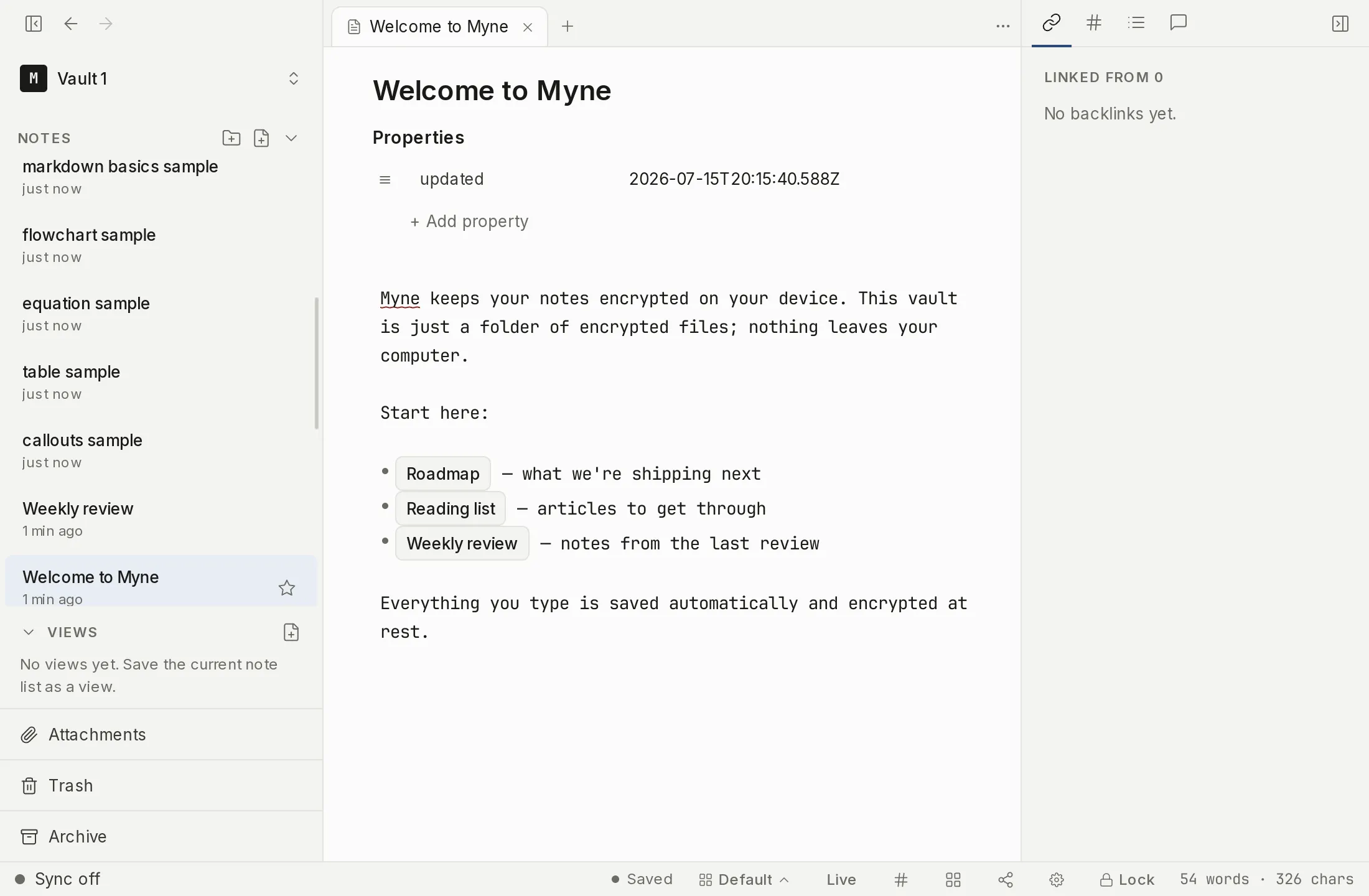
Creating a note
New items come from the + button at the top of the sidebar. Its menu has four rows: New note, New note from template…, New drawing, and New folder. Right-clicking empty sidebar space offers three of them, without the template row. Right-clicking a folder row offers New note here, New drawing here, and New subfolder, which do the same things inside that folder; making a note from a template stays on the + menu.
New note, ⌘N / Ctrl N, and the new-note-in-pane shortcut all make an instant blank note and drop you into it, with the caret already in the note’s own title field, so you can name it and press Enter without reaching for the mouse. The new note also sits at the top of wherever it was made, above the folders, until you make the next one. There is no dialog and no template to pick. A note built from a template is the separate, deliberate path; see Templates. New drawing makes a note you draw in instead of type in; see Drawings.
A note’s title comes from the title field in its frontmatter, and from nothing else. Until a note has one it shows as Untitled in the sidebar, even when its first line is a # heading: a heading in the body stays a heading, and never doubles as the note’s name.
Two places give a note its title, renaming its row in the sidebar and the title field at the top of the note. Both write that same one title field, and on a note that had no frontmatter block the first rename adds one and leaves the body byte-for-byte alone.
The field in the note is where a new note gets named, because that is where the caret lands. The sidebar’s inline rename is still there for a note you already have, on its right-click menu and on Note actions. A drawing is the exception: it has no title field to type in, so creating one opens the sidebar rename instead, and an unnamed one reads as Untitled drawing rather than plain Untitled.
To copy a note as a starting point, Duplicate makes a clone with a fresh title. When you want to act on several notes at once, you can select multiple notes and move, archive, or delete them together, or drag a selection into a folder; an Open random note action in the command palette pulls up a live note at random for serendipitous review. These are covered in Bulk note actions.
Acting on the note you have open
The sidebar’s right-click menu is not the only way in. While a note is open, a Note actions menu sits at the top right of the editor with the actions that apply to that one note: Rename, Move to folder…, Duplicate, Version history, Turn into template (or Convert to note on a template), Export…, which opens the four formats beside it rather than listing them in the menu, and Move to trash. They do exactly what their sidebar equivalents do, and the sidebar’s own right-click menu groups Export the same way. The menu is there so you do not have to find the note’s row first. It is absent on a new, empty tab, where there is no note for it to act on.
Folders
Folders group your notes in the sidebar. You can nest them, drag notes between them, and create as many as you like. Deleting a folder that still contains notes moves the whole subtree to the Trash rather than destroying it, so nothing is lost to a misclick (see Trash).
A folder can have an index note, an ordinary note marked as that folder’s landing page. It gets no row of its own in the sidebar tree; you open it from the folder row instead, by double-clicking the row or by clicking the book icon on it. A wikilink that ends in a slash, like [[Projects/]], opens the folder’s index note. See Folder notes.
Private by design
Folders are an organizational layer, not a disk layout. The folder names you choose, and the structure you build, live inside the encrypted vault. They never become real directories on disk, so the names are not visible to anyone who only sees the vault folder. What that protects, and what it doesn’t, is covered in How Myne protects your notes.
Autosave, in detail
Myne autosaves; there is no save button. Concretely:
- It saves about one second after you stop typing.
- If you type continuously, it saves at least every ten seconds anyway.
- It also flushes immediately when you switch away from the window, lock the vault, or close the app.
So in a normal session nothing is ever unsaved for long. In the worst case, a hard crash or power loss mid-edit, you could lose at most about the last ten seconds of typing. If a save ever fails, Myne shows the error and a Retry so you know, rather than failing silently. Each note also records its own “last edited” time inside the encrypted note.
While a save is failing, actions that would rewrite the same note from disk are declined rather than half-applied: renaming a note or a folder, setting a cover, turning a note into a template, ticking a task from the Tasks panel. Myne says an open note has not finished saving and leaves the note alone. That is deliberate. Those actions read the file, change one field and write it back, so running one against a note whose newest text is still in the editor would write over your typing. Nothing is lost either way, and the action works normally as soon as the save lands.
One action can land partly, and it is worth knowing which. Renaming a folder moves every note in it in a single all-or-nothing write, and then records separately that the folder is one you keep. If that second, smaller write fails, the rename itself has still happened: Myne says so, and an empty folder may reappear under the old name the next time you open the vault. Deleting it then is safe.
Making a folder writes that same small record, and there Myne retries once before telling you anything, so a passing hiccup costs you nothing. If it still cannot record the folder, it says so: the folder works, but it will disappear when its last note leaves it. Very rarely it will say instead that the folder list is full. Myne remembers a large but limited number of folders, and past that a new one is not recorded; deleting a folder you no longer need makes room.
Setting notes aside
The Archive is a separate place to set notes aside without deleting them: an archived note leaves the active sidebar but is not headed for deletion the way a trashed note is, and you can bring it back to its folder unchanged at any time. Archiving and Trash are distinct — a note is one or the other, never both. See Archive.
Limits
Autosave bounds your exposure to a hard crash at roughly ten seconds; it cannot protect against a disk that loses already-written data, which is what backups are for. Deletion sends notes to the Trash, but emptying the Trash is permanent, as covered next.