Myne lets you keep several notes open at once, in tabs and in side-by-side panes, and it remembers that layout between sessions. This article covers how tabs and splitting work and the one thing to know about how the layout is saved.
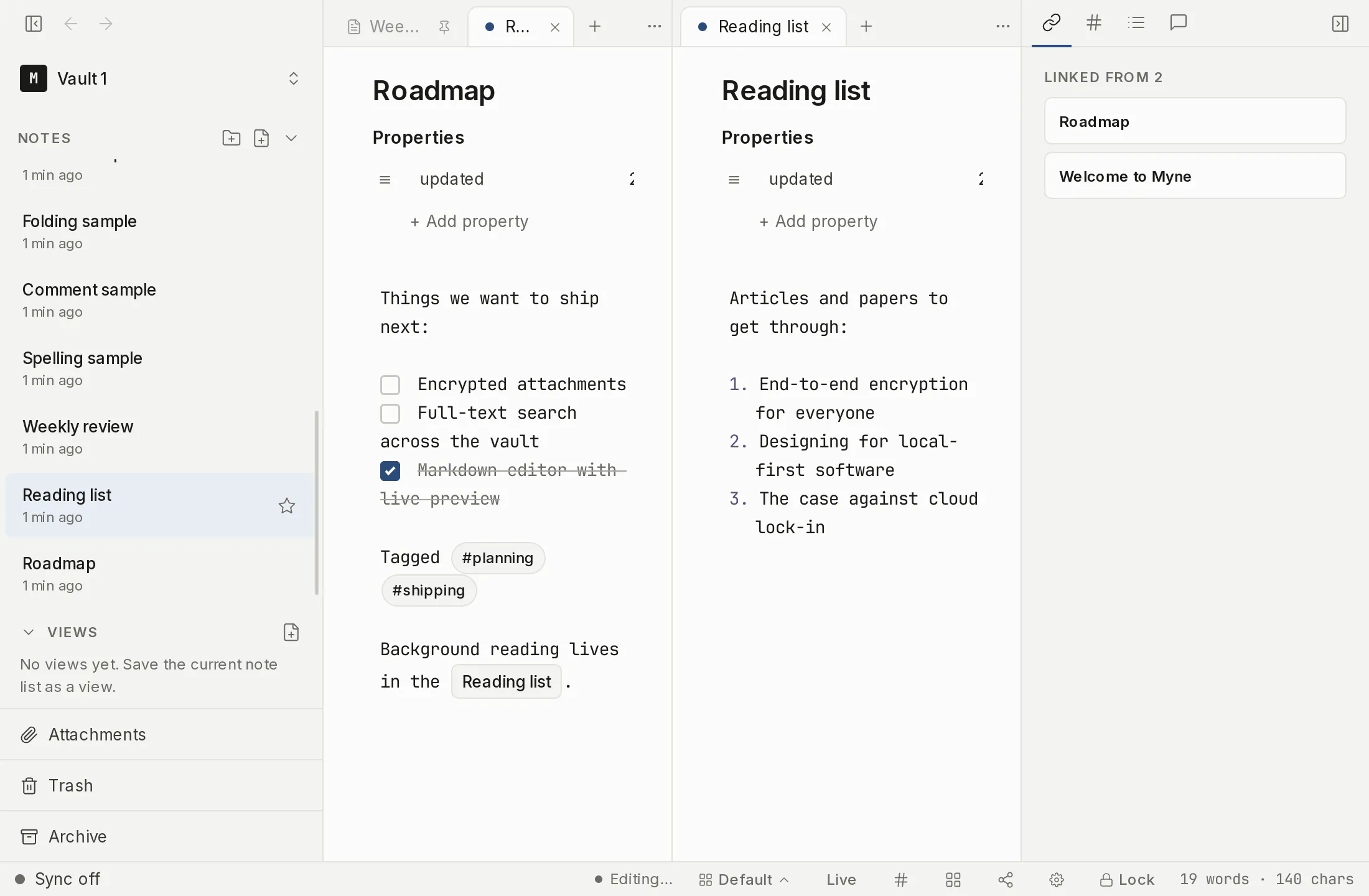
Tabs
Selecting a note opens it in the focused pane’s active tab; it reuses the tab you are in, rather than piling up new ones. When you want to keep the current note open alongside a new one, open the new note in a new tab instead. Tabs in a pane can be cycled with the keyboard (see Shortcuts below), and closing a tab leaves the others untouched.
A new, empty tab does not force a blank note on you. It shows a chooser: a search box over your notes, your most recent notes below it, and rows to create a new note or a new drawing instead. Trashed notes, archived notes and templates are left out, matching what the sidebar shows. Press Esc to go back to the tab you were on, if the pane still has one.
Each tab carries its own view mode — Live preview, Reading, or Source — so you can read one tab while editing another, and ⇧⌘E toggles the focused tab between editing and reading. See View modes for what each mode shows.
You can also pin a tab so it is protected from being replaced by the next note you open — once a tab is pinned, navigating to a note opens it in a new tab instead of reusing the pinned one — and pinning also hides the tab’s close button (right-click the tab to pin or unpin). You can stack a pane’s tabs into an overlapping deck when you have many open. See Pinned and stacked tabs.
The tab context menu, and closing a tab from the keyboard
Right-click a tab for its menu: Pin or Unpin, Move left, Move right, and Close tab. Move left and Move right shift the tab one slot at a time, and each direction is offered only when there is somewhere to go, so the first tab is not offered a move to its left.
A tab strip is one stop in the Tab order. The arrow keys move between the tabs in a pane, and Enter or Space switches to the tab you have moved to. Moving the focus does not switch tabs on its own, so arrowing across a row of open notes does not open each one on the way past.
With a tab focused, Delete or Backspace closes it. The close x on the tab itself is there for the mouse and is not a keyboard stop; the keyboard paths are Delete or Backspace, ⌘W / Ctrl W for the active tab, and Close tab in the menu above. A pinned tab has no close x and no Close tab item: unpin it first.
Split view
Split the focused pane to put two notes side by side: right, for columns, or down, for stacked panes. Each pane has its own tabs and its own focus, so you can read one note while editing another. You always have at least one pane; everything stays inside the single Myne window, and there are no pop-out windows.
Your workspace is remembered
Myne saves your open tabs and split layout and restores them the next time you unlock the vault, so you pick up where you left off.
Each note also keeps its reading position for as long as the vault is unlocked. Leave a long note half way down, go somewhere else, come back, and you land where you were rather than at the top. It survives a split too, which is where it used to be lost: the pane you split is rebuilt from scratch, and what is remembered is the LINE you were on rather than a pixel offset, so a narrower pane that re-wraps the text still puts you back on the same sentence. Locking the vault clears it, along with everything else Myne holds in memory.
You start in a workspace named Default, and you can keep several named workspaces — separate, switchable layout slots — for different kinds of work. Save the current arrangement under a name, switch between them, and rename or delete them from the workspace switcher in the bottom bar or from the command palette. See Named workspaces for the full walkthrough.
Limits
The Default workspace’s layout is saved when you close or lock Myne normally, and is otherwise written at most about once every five minutes while you work — not on every keystroke. So if Myne is interrupted by a hard crash or power loss, it may restore a slightly older layout than your very last arrangement. Your notes themselves are safe, since autosave handles their content (see Notes and folders); only the arrangement of tabs and panes can lag.
Shortcuts
| Action | macOS | Windows / Linux |
|---|---|---|
| New note in the focused pane | ⌘T | Ctrl T |
| Next / previous tab in the pane | Ctrl Tab / Ctrl Shift Tab | Ctrl Tab / Ctrl Shift Tab |
| Close the active tab | ⌘W | Ctrl W |
| Close the focused tab | Delete or Backspace | Delete or Backspace |
| Toggle the focused tab between editing and reading | ⇧⌘E | Ctrl Shift E |
| Split the focused pane right / down | ⌘\ / ⌘⇧| | Ctrl \ / Ctrl Shift | |
Split-down is the same physical keys as split-right plus Shift. Myne lists it as | because that is the character Shift and \ produce together, and the Hotkeys panel spells it the same way.