The editor’s reading surface is yours to tune. You can set the text size, the line spacing, the width of the editing column, and the font, you can turn on a line-number gutter, and you can choose how dates and times are printed. Every control lives in Settings, applies to the open editor right away, and is saved in your vault’s encrypted preferences. Four of them can also be reached from the command palette, which the last section covers. Right-to-left and mixed-direction text is the one thing here with nothing to configure. The editor works it out per line.
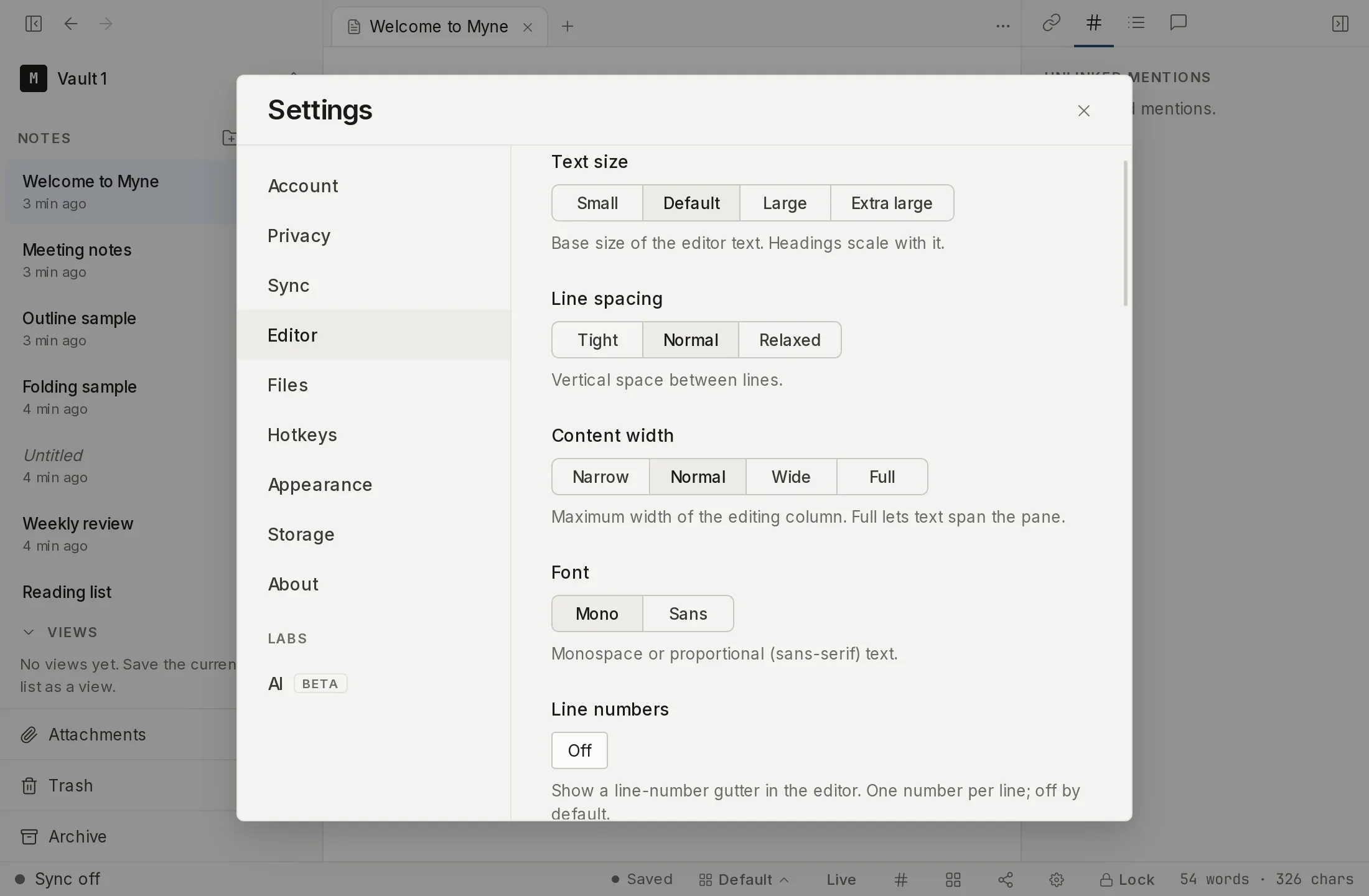
Text size, line spacing, content width, and font
Open Settings → Editor. Four segmented controls sit at the top, each a row of presets you click between:
- Text size — Small, Default, Large, or Extra large (13, 14, 16, or 18 px). The default is Default. Helper text: “Base size of the editor text. Headings scale with it.” Headings are sized relative to the base, so raising the text size scales the whole document, not just body text.
- Line spacing — Tight, Normal, or Relaxed (1.45, 1.7, or 1.95). The default is Normal. Helper text: “Vertical space between lines.”
- Content width — Narrow, Normal, Wide, or Full (560, 680, or 820 px, or no maximum). The default is Normal. Helper text: “Maximum width of the editing column. Full lets text span the pane.” Full lets text run to the edges of the editing pane instead of capping the line length.
- Font — Mono or Sans. The default is Mono. Helper text: “Monospace or proportional (sans-serif) text.”
Each change applies to the open editor immediately, with no reload of the note — your cursor, scroll position, and undo history stay put. Picking a field’s default value clears that field rather than storing it, so a vault left at the defaults is byte-for-byte identical to one that never touched the controls.
Line numbers
To show line numbers down the left side of the editor, open Settings → Editor → Line numbers and switch it On. It is Off by default. Helper text: “Show a line-number gutter in the editor. One number per line; off by default.”
The gutter numbers one logical line per row. When a long line soft-wraps onto more than one row, the continuation rows stay blank — only the start of each logical line gets a number. Like the typography controls, the toggle applies to the open editor live, with no reload; your cursor, scroll position, and undo history are preserved.
Date and time formatting
Further down the Editor panel, under Editing, three controls decide how Myne prints dates and times.
- Date format — helper text: “How a date is written wherever Myne shows one.” The options are Match language, which follows the interface language you chose, plus one option per layout, each labelled with the same worked example date so you can see what you are picking.
- Time format — Match language, 24-hour, or 12-hour. Helper text: “Whether times are shown on a 24-hour or 12-hour clock.”
- Time zone, helper text: “Which zone decides what counts as today, and so which note your daily, weekly and monthly notes open. Leave empty to follow this device. The choice settles per device: no other device overwrites it, so an override can put this device on a different day from your others. Times you write in a note are never changed; 09:00 stays 09:00 everywhere.”
The first two change what you see wherever Myne prints a date, including a due date on a task line inside a note; they never change the note itself. Time zone decides two things: what Myne counts as today, so a task due today stays due today when you travel, and so does which note this week’s or this month’s note opens. The command line is the exception: it uses the clock of the machine it runs on and says so. Type a zone name like Europe/Berlin; a name Myne cannot use is refused rather than stored, with “Myne doesn’t know that time zone. Use a name like Europe/Berlin.”
A time you type into a note is never rewritten by any of this. Myne stores note times as plain wall-clock text, so 09:00 stays 09:00 everywhere, and no zone name is written into a note.
Dates and times covers the rest: which of the three travel with your vault and which stay on the device, what the phone shows, and what happens when you search a note for a date the way you read it.
Right-to-left and mixed-direction text
There is nothing to configure here. The editor works out each line’s direction from the line’s own text, so a note that mixes Arabic or Hebrew paragraphs with Latin ones lays each one out correctly — the right-to-left lines run right to left and the English lines run left to right, in the same note. A blank line follows the direction of the interface. This applies in Live preview, Reading, and Source alike, and it changes only how the text is drawn: the bytes stored in the note are untouched.
From the command palette
Four of these settings can be changed without opening Settings. From the editor, open the command palette (⌘K / Ctrl K) and run one of:
- Cycle editor text size steps through Small, Default, Large, Extra large, then back to Small.
- Cycle editor content width steps through Narrow, Normal, Wide, Full, then back to Narrow.
- Toggle editor font (mono / sans) swaps between the two.
- Toggle line numbers turns the gutter on or off.
Each writes the same preference its Settings control writes, so the open editor picks it up live and the choice persists. Line spacing and the date, time, and zone controls have no palette entry; those stay in Settings.
Where these settings live
The display preferences (text size, line spacing, content width, font, the line-number toggle, and the date, time, and zone choices) are stored per vault in your encrypted vault prefs. They stay on your device and are never sent anywhere. Because Myne only writes a value when it differs from the default, a vault you have left untouched stays identical on disk to one where you explicitly chose every default.
The time zone is the one that behaves differently across your devices, and the two facts fit together rather than contradicting each other. It is stored in the same encrypted vault prefs as the rest, so it does travel with the vault, and a device you add later starts out holding whatever it was set to. What is per-device is that no other device ever OVERWRITES it: change the zone on your laptop and your phone keeps its own. So the choice settles per device rather than never leaving one, and an override you set on a computer can put that computer on a different day from your phone.
To reach Settings, click the gear in the bottom bar or press ⌘, (Ctrl , on Windows and Linux).
Limits
These are cosmetic display preferences. They change how your notes are drawn on screen — text size, spacing, column width, font, whether the gutter shows, and how a date or a time is printed — and nothing else. They never change the content of a note, what is encrypted, or where it is stored. Per-line text direction is not even a preference: it is read from the text as it is drawn.
The values are stored in the encrypted vault prefs, but they are not load-bearing: a tampered or replayed value can at worst change how text renders, show or hide the line-number gutter, or print a date in a different layout. There is no security claim attached to them. How your notes themselves are protected is covered in How Myne protects your notes.
Shortcuts
| Action | macOS | Windows / Linux |
|---|---|---|
| Open Settings | ⌘, | Ctrl , |