A saved view is a filtered, projected slice of your notes that you can return to from the left sidebar. The feature is off by default and you turn it on in Settings. You build a view from condition filters (tag, folder, or free-text search) and Myne renders the matching notes as cards, as a table, or as a list, with optional cover images and a few display choices. You can also import view definitions from an Obsidian Bases .base file. A view is a read-only projection over your notes, not a database: it never changes a note, and there is no formula language behind it.
Turning views on
Views are off by default. Open Settings → Editor and turn on Views — the helper line reads “Show the Views entry in the sidebar for saving filtered note lists. Off by default; on if you already have views.” If your vault already has saved views, the entry shows without you turning anything on. The setting is stored on this device only, so each device decides for itself.
The Views entry and its flyout
With views on, the left sidebar carries a compact Views row, a peer of the Attachments, Trash, and Archive entries at the foot of the sidebar. Two controls appear on the row when you hover it: a + button (New view) and a caret.
Click the row or the caret and a flyout opens to the right, listing every saved view in display order. It has a search box (Search views…) so a long list stays reachable; when nothing matches, it reads No views match your search. The view you currently have open carries a checkmark. Clicking a view row opens that view as a workspace tab. When you have no views yet, the list reads No views yet. Save the current note list as a view.
Right-clicking a view row in the flyout opens a menu:
- Edit filter…: reopen the filter builder for this view.
- View settings…: how the view renders, meaning its type, grouping, sorting, columns, and for a cards view its cover settings. It appears for every view type.
- Rename: edit the view’s name in place.
- Move up / Move down: reorder the view within the list.
- Delete view: remove the view definition.
You can also reach the views from the Views button in the bottom bar, or with the Browse views… action in the command palette. Both expand the sidebar, scroll the row into view, open the flyout, and briefly highlight the row so the click always lands somewhere visible.
Building a view’s filter
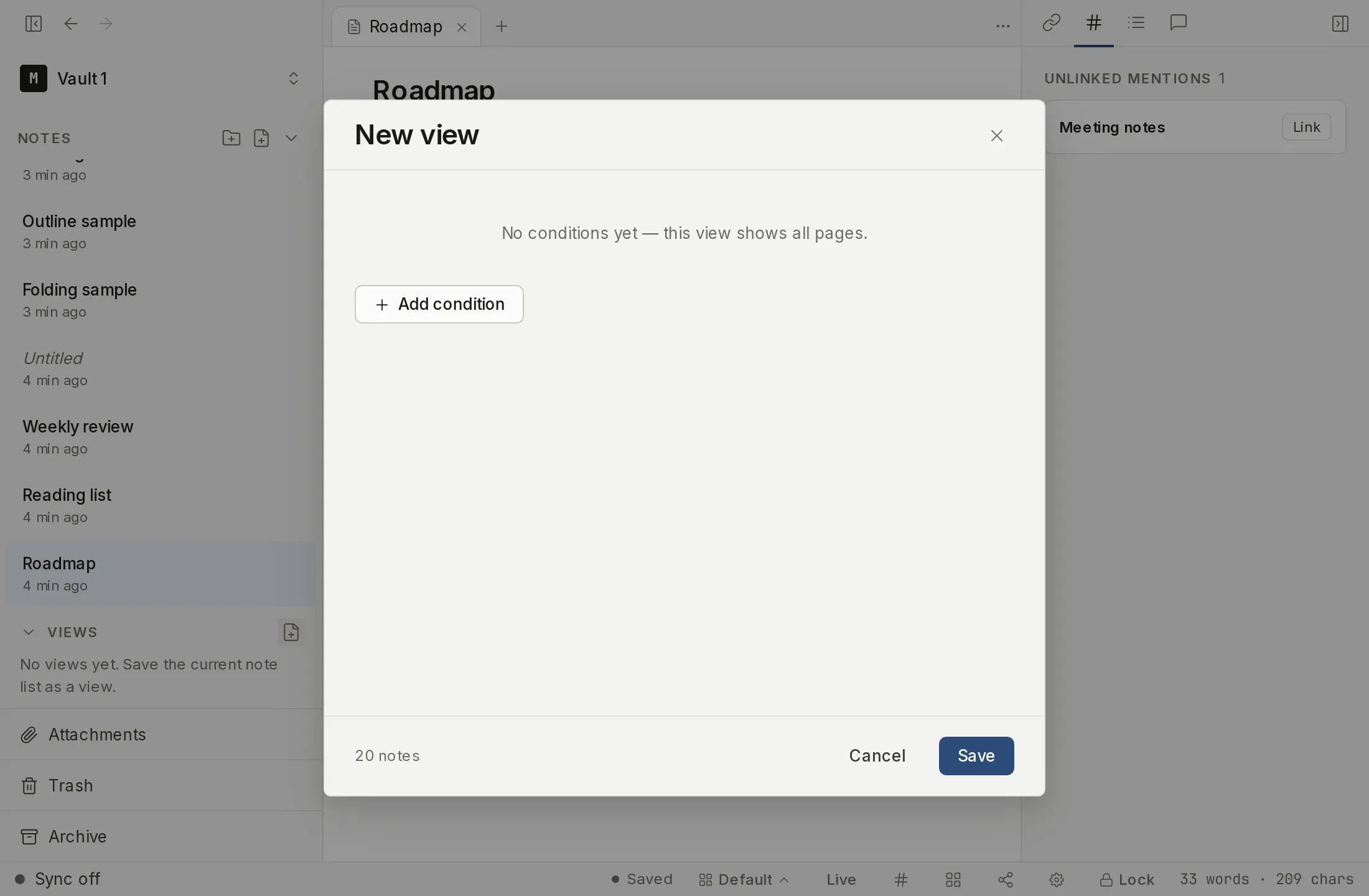
A view’s filter is composed in a filter builder modal — opened from the + button for a new view, or Edit filter… for an existing one. It works like a Notion- or Airtable-style set of condition groups.
- Each condition is a Tag, a Folder, or a free-text Search, with an is / is not toggle.
- Each group combines its conditions with all (every condition must match) or any (at least one must match).
- When you have more than one group, a top-level all / any combines the groups. That is the one level of nesting the builder offers.
As you compose, a live N notes count previews how many notes currently match. Saving with no conditions creates an all-pages view — every note, in recency order.
If a condition points at a tag or folder that no longer exists, it shows a quiet unresolved badge. The stored value stays visible and removable; a missing target simply matches nothing. A filter that was made with a more advanced editor than the builder can represent opens read-only, with a Replace filter button so you can deliberately start a fresh filter rather than have Myne silently reinterpret the old one.
Under the hood, the query layer is type-aware and follows a few fixed rules. Folder conditions are subtree-inclusive, so a folder also matches its sub-folders. There is no file-metadata or modified-time source to query against — only your notes’ tags, folders, text, and typed properties.
The cards view
A cards view renders the matching notes as a calm card gallery — not a kanban board. Each card shows an optional cover image, the note’s title, and any display-column values formatted by their type. Cards are grouped under section headings, each heading carrying a per-group count, and the gallery is virtualized so a large result stays smooth. A note with no value for the grouping property lands under a No value group; a note whose grouping property holds a list of values appears under each matching group.
Cards are read-only — they only open notes, they never edit them:
- Single-click opens the note in the focused tab.
- ⌘-click or Ctrl-click, or a middle-click, opens it in a new tab.
- Alt-click opens it to the side.
Right-clicking a card offers exactly four non-destructive actions: Open, Open in new tab, Reveal in folder, and Copy link. Copy link writes a wikilink to the clipboard and reports nothing either way, so check the clipboard rather than the screen. When no notes match the filter, the gallery reads No notes match this view.
The table and list views
A view can also render as a table or as a list. You pick which in View settings…, and the choice is per view.
A table draws one row per note: a Name column with the note’s title, then one column for each frontmatter property you added under Columns. A list draws one line per note, with those same properties as a quiet detail line under the title.
Both behave like the cards gallery in every other respect. They group under the same section headings with a per-group count, they sort the same way, they open notes with the same clicks (single-click in the focused tab, ⌘-click or Ctrl-click or middle-click in a new tab, Alt-click to the side), and they offer the same four-item right-click menu. Both are read-only, like cards. When nothing matches the filter, all three read No notes match this view.
View settings and covers
View settings… decides how a view renders. The first four controls apply to every view type:
- View type: Cards, Table, or List.
- Group by: the frontmatter property whose value groups the results under section headings, or None for one flat run.
- Sort by: the property to sort on, or None. Pick one and an Ascending / Descending control appears beside it.
- Columns: “Frontmatter properties shown as columns (table) or as a detail line (list / cards).”
The last three appear for a cards view only:
- Cover image property: the frontmatter property whose value is an image, shown as each card’s cover. Leave it empty for no cover. To show the covers you set on notes themselves, point this at
cover, which is the property Note covers writes. Properties already in your vault are offered as one-click chips under the field. - Image aspect ratio: Default (16:9), 16:9 (wide), 3:2, 4:3, or 1:1 (square).
- Card size: a slider from 120 to 600 pixels (default 220), with a Reset button.
You can also set a cover on an individual note from its card. Hover the card and click Set cover (or Change cover if it already has one) to open the Choose a cover image modal. There you pick from a grid of images already in your vault, use Upload to add a new one, or drag and drop a file in. Remove cover clears the note’s cover.
That writes the note’s own cover property, the same one the note’s banner uses, so a cover set from a card also appears above the note when you open it. Note covers covers it from the note’s side.
Importing an Obsidian .base view
If you have view definitions in an Obsidian Bases .base file, the command palette has an Import .base view… action (under the Vault category) that reads a single .base YAML file and turns its views into Myne saved views. This is import-only — Myne does not export back to .base.
The import is deliberately lossy, and it tells you exactly what it left behind rather than guessing. A filter clause Myne’s query layer cannot represent is dropped, and the rest of that view is kept. A view whose entire filter drops is skipped rather than silently widened to “all notes”. Top-level formulas, summaries, and property-display blocks are dropped — Myne has no formula language to honor them. When it finishes, a summary toast reports the tally, for example Imported 3 view(s) · 1 skipped · 2 filters dropped.
You can also turn a tag selection into a view without the builder. In the Tag browser, the active tag selection plus its AND/OR mode becomes a saved view through Save as view: each selected tag becomes a tag condition. A blank name falls back to a label derived from the tags, or Filtered view when there is nothing to derive from. A view made this way defaults to the cards type.
Limits
A saved view is a read-only projection. It never mutates a note and never writes to disk beyond its own definition. That definition lives inside the vault’s encrypted preferences; a view’s name and its filter are treated as sensitive, so Myne never logs the name or the query itself — only operation counts.
Whether the sidebar shows the Views entry at all is a separate, device-local display setting stored outside the vault. It holds no view content — only a yes or no — which is why it does not travel to your other devices.
The query layer is a closed allow-list — tag, folder, search, and typed-property comparison, joined with and / or / not. There is no evaluatable expression, no arithmetic, and no code evaluation: Myne is not a database and has no formula language. This is why an unsupported .base clause is dropped rather than approximated, and why there is no modified-time query source.
When the vault is locked, a view has nothing to read, so it resolves to an empty result and its count shows 0 — never an error. How that fits the wider model is covered in How Myne protects your notes. Until you turn on sync or name a remote AI provider, Myne runs entirely on your device; nothing leaves it.
Shortcuts
| Action | macOS | Windows / Linux |
|---|---|---|
| Open command palette (then Browse views… or Import .base view…) | ⌘K (alias ⌘P) | Ctrl K |
| Open a card’s note in a new tab | ⌘-click / middle-click | Ctrl-click / middle-click |
| Open a card’s note to the side | Alt-click | Alt-click |