Sometimes the same edit belongs in several places at once. Myne lets you stack cursors on the lines above and below where you are, Cmd-click (Ctrl-click on Windows and Linux) to drop a cursor anywhere you point, or grow a selection to the next occurrence of a word so you can change every match together. When you are done, Escape collapses everything back to a single cursor. All of it lives in the editor body, on the keyboard and the mouse.
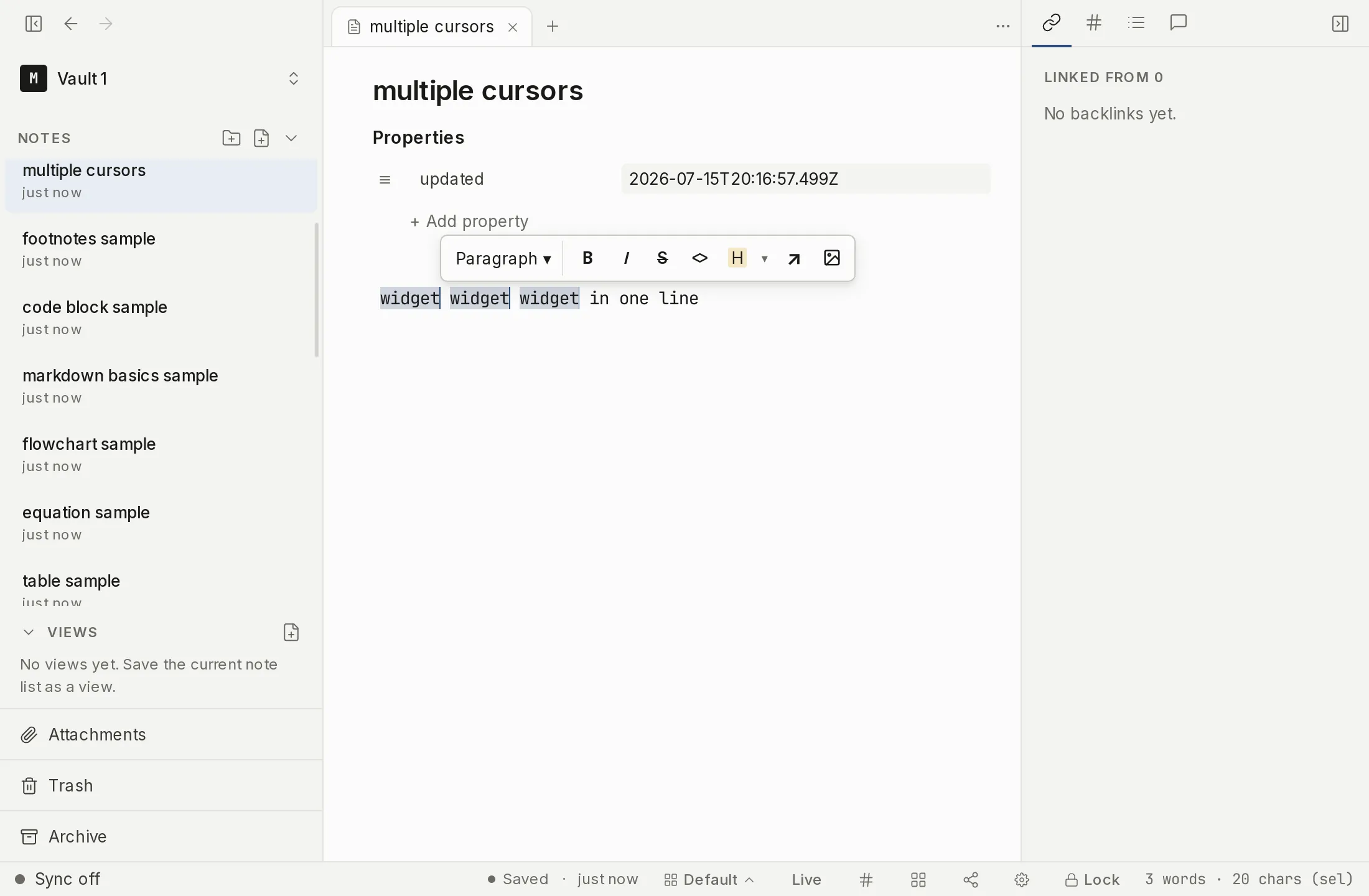
Adding cursors
To stack cursors vertically, hold the add-cursor chord and press the down or up arrow: each press drops another cursor on the next line in that direction (see Shortcuts below). Once you have more than one cursor, typing lands the same edit at every cursor in lockstep, so the keystrokes you make go into each place at the same time.
To place a cursor somewhere that is not directly above or below, hold Cmd and click where you want it (Ctrl and click on Windows and Linux). Each Cmd-click adds one more cursor at the point you click, so you can build up a set of edit points anywhere in the note. Once you have more than one, Cmd-clicking a spot where a cursor already sits removes that one again, so you can trim a set you overshot.
Selecting the next occurrence
When you want to change the same word in more than one spot, first select the word, then press the select-next-occurrence shortcut. Myne extends the selection to the next occurrence of that word, leaving a cursor on each match. Press it again to add the occurrence after that, and so on; with several matches selected, what you type replaces all of them at once.
Collapsing back to one cursor
Press Escape to collapse every cursor back to a single one. Myne shows no on-screen count of how many cursors are active, so when an edit starts landing in places you did not expect, Escape is the quick way back to one cursor.
Shortcuts
| Action | macOS | Windows / Linux |
|---|---|---|
| Add cursor below | ⌘⌥↓ | Ctrl Alt ↓ |
| Add cursor above | ⌘⌥↑ | Ctrl Alt ↑ |
| Add cursor at click | ⌘+Click | Ctrl+Click |
| Select next occurrence | ⌘D | Ctrl D |
| Collapse to a single cursor | Esc | Esc |
The two add-cursor chords are also the defaults for Focus next pane and Focus previous pane. With a single pane open that costs nothing. In a split, one press does both jobs: the cursor is added in the editor you are typing in, and the focused-pane marker moves to the neighbouring pane. Typing still lands where your cursors are, and clicking back into your own pane puts the marker back. If you use splits and multiple cursors together, rebind one side of the collision in Settings → Hotkeys.
Select next occurrence is listed in the Hotkeys catalog under Editor formatting and can be changed there — see Customizing keyboard shortcuts. The add-cursor chords come from the editor’s built-in keymap and are not listed, so they cannot be rebound.