Restoring brings a vault back from a .myne-backup file, onto a new computer, or after the live vault is damaged. This article covers the flow, what happens if a matching vault already exists, and how a damaged backup is handled.
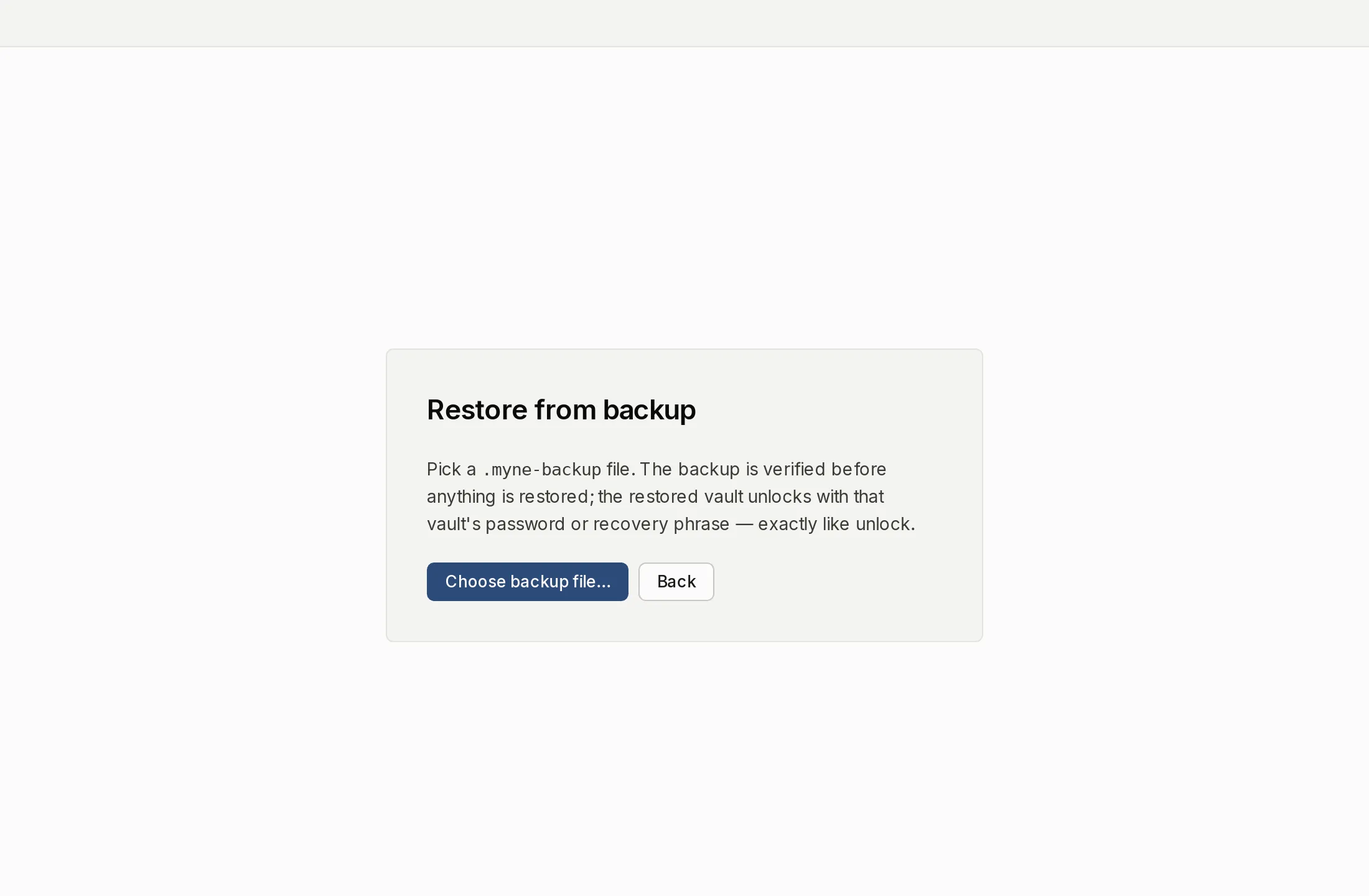
Starting a restore
You can start a restore from five places: the Restore from backup door on the Welcome screen, the same entry in the vault picker when you have more than one vault, Settings → Storage, the command palette, and the screen Myne shows when it cannot open a vault. They all lead to the same flow: pick the .myne-backup file, and Myne rebuilds the vault from it.
All five are desktop app controls. In a browser there is no restore at all: the backup controls are omitted rather than shown greyed out, so Settings → Storage there only tells you where your notes live in that browser, and that clearing the site’s data means signing in again to download them back. A browser’s local copy comes from the sync server, so what a restore would do for it, syncing already does. On a phone or tablet the restore screen exists and says so: Not available on mobile yet, and it points you at creating a vault or unlocking with your recovery phrase instead.
Restoring does not ask for your password, because the backup is encrypted bytes and copying them back needs no key. The restored vault arrives locked; you open it afterward with its password or recovery phrase, the same as any vault.
A restore places a vault; it does not merge one into another. If what you want is to bring notes from one vault into a vault you already have open, that is a different flow: see Combine two Myne vaults.
When a matching vault already exists
If the backup is of a vault you still have, Myne asks how to handle the overlap. You have two choices:
- Keep both: the restored copy comes in as a separate vault alongside your existing one. Nothing you have is touched. This is the safe choice.
- Restore, then replace existing…: the backup comes in as a separate vault, exactly as with Keep both, and Myne then points you at the vault list to remove the old copy yourself. Nothing is overwritten and nothing is deleted for you. Removing the old vault is a separate, deliberate step that asks you to type DELETE, and it only makes sense once you have opened the restored vault and confirmed it is what you expected.
If you’re not sure, choose Keep both. You can always delete the extra vault later; you cannot undo a replacement.
If the backup is damaged
By default a restore is all-or-nothing: if the backup file is damaged, the restore stops cleanly rather than producing half a vault, and nothing is restored. If you would rather recover what can still be read, there is an explicit Salvage intact notes… option.
Salvage is lossy on purpose, and Myne does not hide it. It takes the notes it can read, drops the rest, and always labels the result as a partial restore — the summary counts what could not be read rather than rounding it away. It also needs the backup’s core vault information to be intact to run at all, so it is not a repair for every kind of damage. Reach for it only when an all-or-nothing restore won’t complete and a partial recovery is better than none.
The restore summary
When the restore finishes, Myne reports what came back: notes, attachments, and the number of version history entries recovered. That last count is for a vault in Myne’s original format, whose notes keep their history as separate snapshots inside the backup. A backup of a vault on the newer format (one created on a current version of Myne, or one whose format you upgraded) has none to count, because each note carries its history inside itself. Review the summary to confirm the vault looks complete before you rely on it.
When your live vault is corrupted
If Myne can’t open your current vault because its files are damaged, it shows a screen with two ways forward: restore from a backup, or delete the vault and start over. The screen makes one promise explicit, your current vault is not touched: the backup is restored as a separate vault first, so trying a restore can’t make a bad situation worse. If the restore works, you have your notes back in a fresh vault; if you have no backup, the start-over path clears the unreadable vault so you can begin again.
Limits
A restore is only as recent as the backup you restore from; anything written after that backup was made is not in it. “Restore” here always means from a backup; if you’ve forgotten your password, that’s unlocking with your recovery phrase, a different thing.