You can keep more than one vault, say one for work and one for personal notes. They are fully separate, and Myne keeps only one open at a time. This article covers switching, what’s visible before you unlock, and how vaults stay independent.
If you have decided you no longer want two, you can bring the notes from one into the other: see Combine two Myne vaults.
One vault open at a time
Myne unlocks one vault at a time. Switching to another means locking the current one and unlocking the next with its own password. There is no way to hop between vaults without unlocking, and no way to open or edit a second vault while one is open.
There is one way Myne reads from a second vault without opening it, and it is worth knowing about because the sentence above is otherwise easy to over-read. While you are importing notes from another vault, Myne holds that vault’s key in memory for as long as the import runs, so it can read the notes it is copying. It is not an unlock: you cannot open that vault, edit it, or switch into it, and no editor ever opens on it. The key is dropped when the import finishes or fails, when you lock or switch the vault you are in, and when that vault is deleted or its password changed. If the app is killed mid-import so none of those happen, a timer drops it anyway.
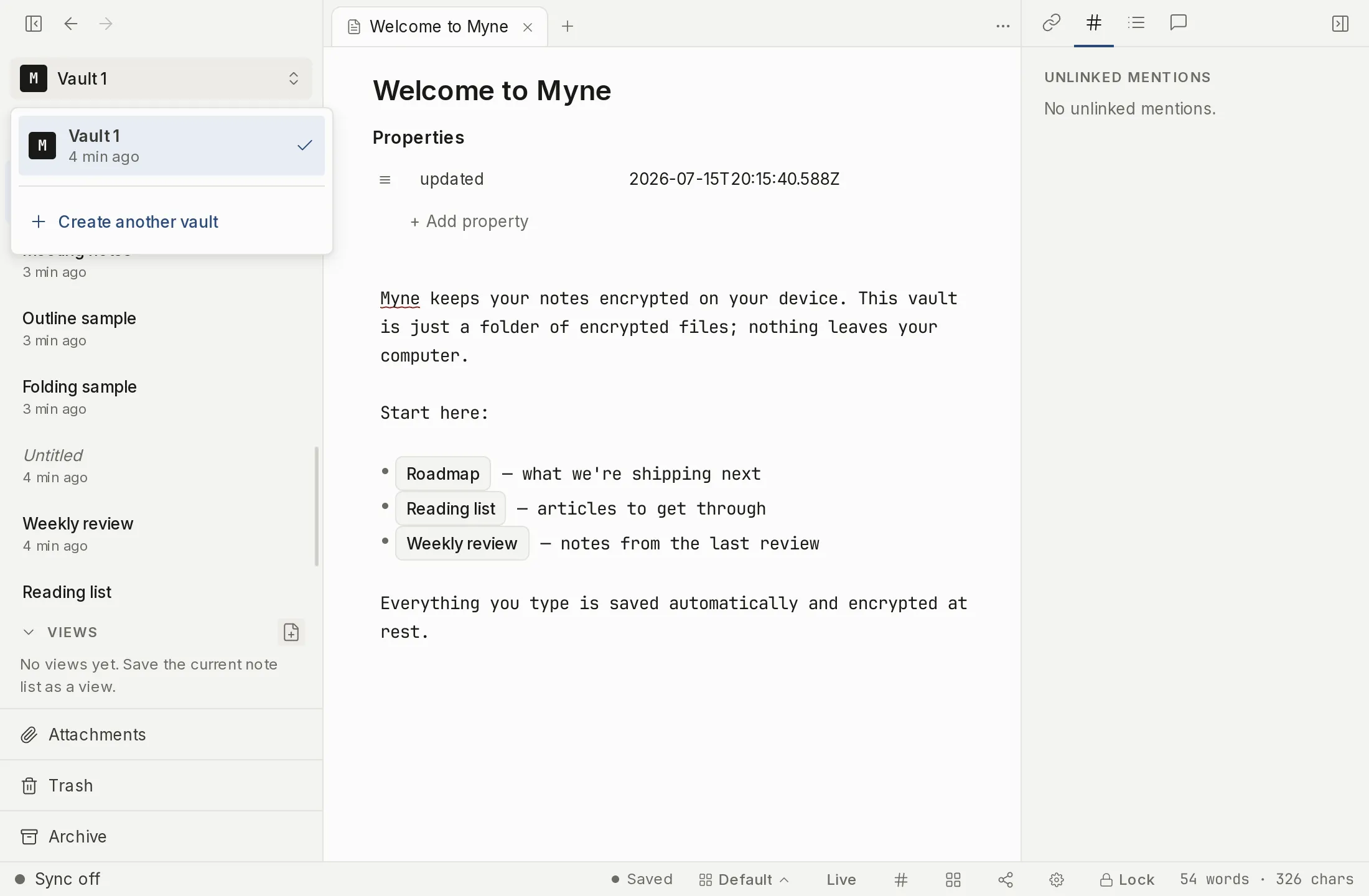
When you have two or more vaults, Myne shows a picker at launch, and the vault-switcher chip at the top of the sidebar lets you switch while you work.
In a browser, one account per profile. The browser client holds a single vault, so neither control exists there: no launch picker, and no switcher chip in the sidebar. To keep a second account on the same machine, use the Myne desktop app, or open Myne in a different browser profile.
What’s visible before you unlock
On macOS and iOS, a vault this device has unlocked before is listed by its real name, from a sealed copy Myne keeps locally after that first unlock. On Windows, Linux and Android there is no keychain to seal that copy with yet, so every row stays neutral. A vault this device has never unlocked is shown neutrally instead, as Vault 1, Vault 2, and so on, because its name is still sealed inside it. That number belongs to the vault rather than to its row, so it does not move as you unlock vaults and the list reorders. It also counts across every vault on this device, not only the neutral ones, so a picker holding two named vaults and one never-unlocked one shows a lone Vault 3. A Privacy setting keeps names off that screen entirely and destroys the copies already stored here: see Vault names on the lock screen. Either way, be aware of what is visible before any vault is unlocked: how many vaults you have, and when each was last opened. Their contents and notes stay sealed until you unlock them.
Grouping vaults under an account
When you have more than one vault, Myne groups them under an account so the picker reads as your vaults rather than a list of strangers. The account is a name you choose, and it lives only on this device: it is not synced, and it does not change how your vaults are encrypted or how the server sees them. Each vault keeps its own password, recovery phrase, and account number, exactly as before.
The grouping is automatic. On upgrade, the vaults already on this device are placed into one account. A new vault joins the account you most recently unlocked, or a fresh account if this is your first vault. On a device with no keychain (Windows, Linux, and Android today), there is nowhere to seal the account record, so vaults stay listed individually with no grouping and no error.
From the picker you can:
- Rename the account. Right-click a vault and choose Rename account, then type the name in the inline form. The header above the group updates.
- Move a vault to a new account. Right-click a vault and choose Move to new account. It leaves its current group and starts a new one.
- Move a vault to another account. Right-click a vault and choose Move to account, then pick the destination account from the list. You choose from your accounts; there is nothing to type.
These are organisational choices on this device only. If you group differently on your laptop and your phone, each keeps its own grouping, and Myne never shows a conflict about it. If a grouping change fails, the picker says so and keeps showing the old grouping: a failed rename or move never looks like success.
These actions appear only for vaults that belong to an account, and only while a vault is unlocked: rename, move and split are refused on a locked device, so the locked picker is a read surface. A vault with no account (on a device with no keychain, or while vault names are hidden) offers no rename or move, because there is nothing those actions could change. While vault names are hidden, grouping is suppressed entirely: the picker lists every vault individually with no headers, and the account actions are refused rather than applied invisibly.
Naming a vault and giving it an icon
Each vault can carry its own name and icon, so the switcher tells them apart at a glance. Both show on the vault-switcher chip at the top of the sidebar and next to each vault in the switcher dropdown. A vault with no icon set shows a neutral M wordmark instead.
To set them, open Settings → Account while the vault is unlocked. The Vault label field names the vault; the Icon grid below it picks a glyph, and Default (wordmark) clears the icon back to the neutral mark.
Like the vault’s contents, its name and icon live inside the vault’s encrypted prefs, so neither is readable until that vault is unlocked. The icon follows that rule strictly: a vault you have not unlocked this session shows the neutral mark. The name is the deliberate exception. After a first unlock on a device, Myne keeps a sealed copy of it there so the locked picker can show it, which also means a rename reaches only the device you rename on: your other devices keep showing the old name until you unlock the vault there. Vault names on the lock screen covers that store, its limits, and the setting that turns it off.
Vaults are independent
Each vault is its own world: its own notes, folders, settings, recovery phrase, and backups. A backup is of one specific vault and restores only that vault. Changing your password in one vault does nothing to another. Nothing moves between them on its own.
The one way anything crosses is if you ask for it: importing notes from another vault copies notes and their attachments into the vault you have open. It is one-directional, it runs once, and the vault you import from is not changed.
Managing the list
From the picker you can open an existing vault, create another vault, restore from backup, or add this device to an account you already sync (see Add a device). The vault switcher in the sidebar carries the create and add-a-device entries too, so you can reach them without locking up first. Removing a vault from the list means deleting it: there is no “remove from the list but keep the files” option, and Myne doesn’t pretend there is. Deleting a vault is permanent (see what that entails in Delete a vault).
Limits
Because only one vault is open at a time, search, the graph, backlinks, and backups all act on the current vault only. There is no cross-vault search or linking.