Every note tab can render in one of three view modes — Live preview, Reading, or Source — over the very same content. You can switch a tab’s mode at any time, set which mode new tabs open in, and while a tab is in Source mode you can open a read-only preview of the rendered note beside it. Switching modes only changes how the note is shown; it never rewrites what is stored.
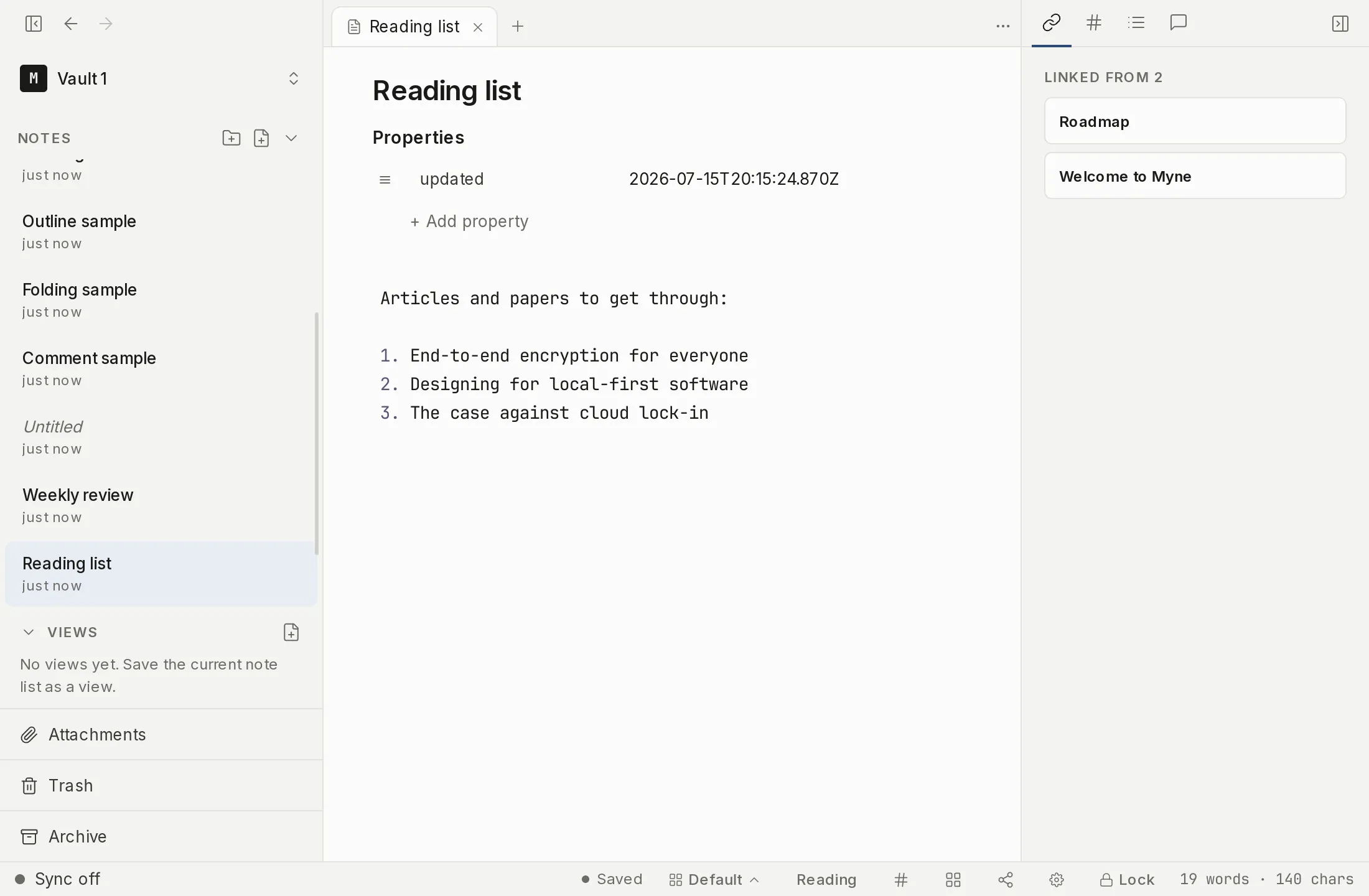
Live preview, Reading, and Source
A note tab is always in one of three modes:
- Live preview is the default. It is the cursor-aware editor you write in: markdown renders as you go, and the raw syntax lifts back into view where your cursor is, so you edit the markup in place. How much lifts depends on the mark. A bullet’s disc and a heading’s
#come back only when the cursor is on the marker itself, so editing the text of a list item leaves the disc alone. Most inline marks work the same way:**bold**,*italic*,`code`, and a link’s brackets and URL lift only while the cursor is inside that span, so two formatted spans on one line never both open at once. A numbered list’s1.is the exception, and comes back for the whole line your cursor is on. A colored highlight always lifts as==text==, never as the underlying HTML it is stored as. - Reading is the fully rendered, read-only view. Markdown never lifts — everything stays rendered — and keystrokes are no-ops, so it is a clean way to read a note without touching it.
- Source shows the raw markdown verbatim, with the live-preview rendering decorations turned off. It is still fully editable, and syntax colouring stays on, so you are editing coloured plain markdown.
All three are views over the same buffer. Switching a tab between them never changes the note’s stored .myn bytes — it changes only what you see.
Switching a tab’s mode
Each tab remembers its own mode, so two tabs of different notes can sit in different modes at the same time.
- The view-mode button in the bottom bar shows the current mode (Live, Reading, or Source). Click it to cycle Live preview → Reading → Source → Live preview. You can hide this button through bottom-bar customization (the View mode item).
- The command palette has Toggle reading view (switches the focused tab between editing and Reading) and Toggle source mode (switches the focused tab between Live preview and Source).
- Toggle reading view also has a keyboard shortcut — see Shortcuts below. Toggle source mode has no default shortcut; reach it from the palette or the bottom-bar button.
Setting the default view mode
To choose which mode new tabs open in, go to Settings → Editor → Default view mode and pick one of the segmented options: Live preview, Reading, or Source. The helper text reads: “How a note opens: Live preview (default), read-only Reading, or raw Source. Toggle a note with ⇧⌘E.” The command palette reaches the same preference: Cycle default view mode, in the Editor category, steps it through Live preview, Reading, and Source without opening Settings.
This sets the starting mode for tabs you open from now on. Tabs that are already open keep whatever mode they are in: changing the default does not reach back and re-mode them.
One setting elsewhere changes the starting mode without you picking it here. While Vim keyboard mode is on (it lives in Settings → Editor and appears once Developer mode is on), a note opens in Source unless you have chosen a Default view mode yourself. Live preview hides the markdown characters vim’s motions still count, so raw source is the honest surface to move around in. The setting says so itself: “Notes open in source view while this is on.” An explicit Default view mode wins in either direction, and a tab’s own mode wins over both.
Side-by-side preview while editing source
While a tab is in Source mode, a Toggle side-by-side preview button appears in the bottom bar. It opens a read-only Reading view of the same note beside your source, so you can see the rendered result as you edit the markdown.
The preview is a linked mirror of the same buffer, not a second editable copy — you still edit in the Source pane, and there is only ever one editable instance of the note. The preview only makes sense in Source mode, so it auto-hides when you leave Source (in Live preview the rendering is already inline, and Reading is itself the rendered view).
Limits
View modes are a presentation choice. Switching a tab between Live preview, Reading, and Source — and the side-by-side preview — never mutate the note’s stored bytes.
Your Default view mode preference lives inside the vault’s encrypted preferences, and each tab’s own mode rides inside the encrypted workspace state that Myne restores when you unlock. Neither is written in plaintext, and neither leaves your device. Until you turn on sync or name a remote AI provider, Myne runs entirely on your device; nothing leaves it.
Shortcuts
| Action | macOS | Windows / Linux |
|---|---|---|
| Toggle reading view | ⇧⌘E | Ctrl Shift E |