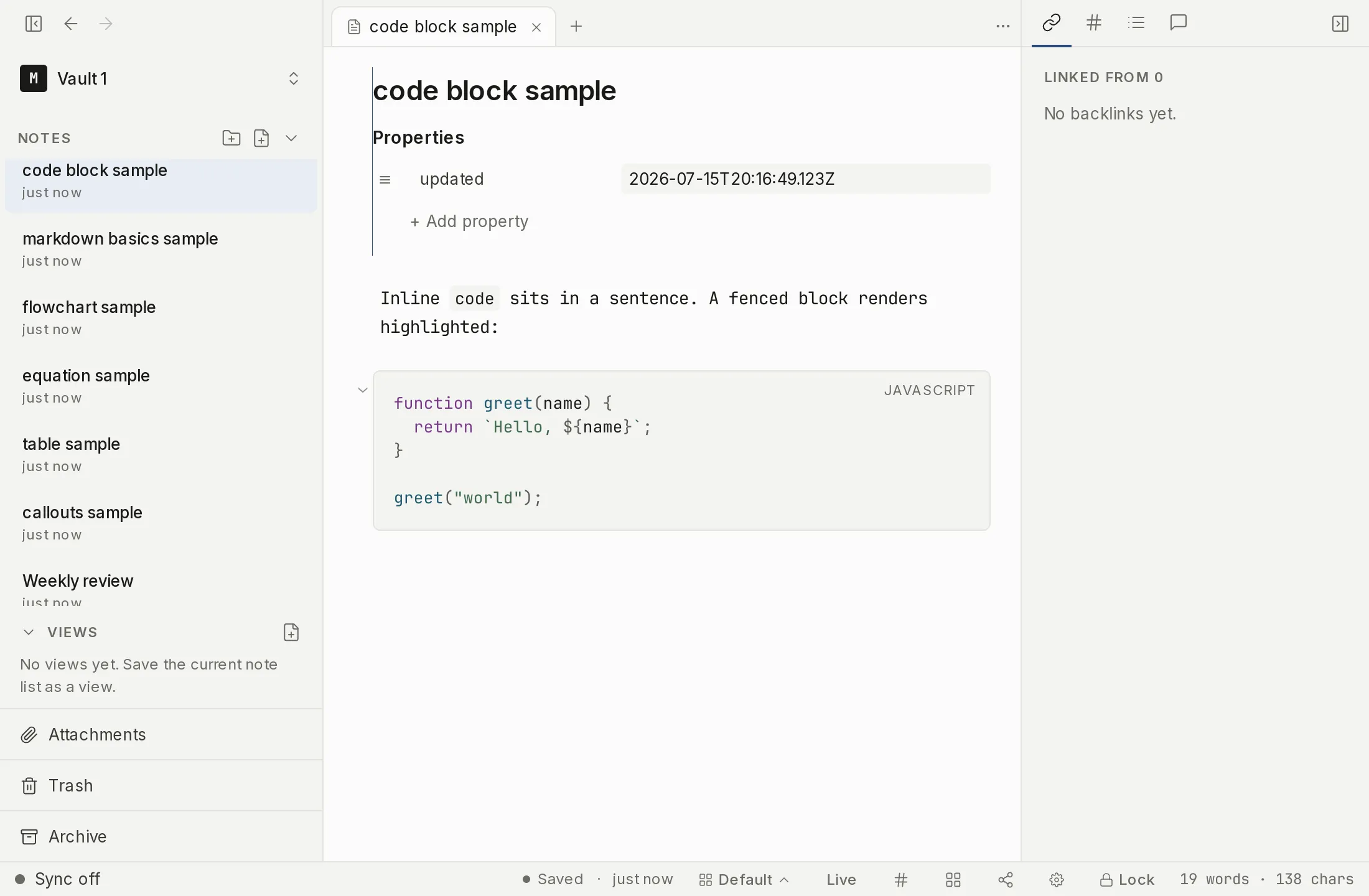
For anything longer than a word of code, use a fenced code block. Myne renders it as a card with syntax highlighting and a copy button.
Writing a code block
Open and close the block with three backticks, and put the language after the opening fence:
```python
def greet(name):
    return f"Hello, {name}"
```
The language label appears on the card, and the code is highlighted for that language. If you start a fence and don’t close it, Myne keeps the rest of the note as code until you add the closing fence. Press Enter at the end of the opening fence line and Myne writes the closing fence for you, leaving your cursor on the empty line between the two.
Supported languages
Syntax highlighting is available for these languages. The name is case-insensitive, and any of the listed aliases works:
| Language | Tag | Aliases |
|---|---|---|
| JavaScript | javascript | js, node, mjs, cjs |
| JSX | jsx | none |
| TypeScript | typescript | ts |
| TSX | tsx | none |
| Python | python | py, py3, python3 |
| Rust | rust | rs |
| JSON | json | none |
| HTML | html | htm, xhtml |
| CSS | css | none |
| YAML | yaml | yml |
| Shell | bash | sh, shell, zsh, shellscript, console |
| Diff | diff | patch |
A block with no language, or one Myne doesn’t recognize, renders as a plain monospace card with no coloring; Myne does not guess. The language set is curated by the maintainers; you can’t add more yourself.
Two fence languages are not code at all. A ```mermaid block is drawn as a diagram — see Diagrams — and a ```tasks block is a live task list built from a query, described in Tasks. Everything else with an unrecognized language stays a plain monospace card.
The copy button
The card’s copy button copies the code inside the block: the lines between the fences, without the backticks or the language label, so you can paste it straight into a terminal or editor. The icon changes for a moment when the copy lands. If your system refuses the clipboard, the icon simply does not change, so a refusal looks like nothing happening rather than announcing itself.
Limits
Markdown special characters inside a code block are inert: a [[wikilink]] or a #tag written inside code stays as literal code text, not a link or a tag. Code blocks are for showing code, not running it; Myne never executes what’s in them.