The Privacy panel has two controls that protect an open vault: auto-lock, which closes it after you step away, and screen-capture protection, which keeps other apps from recording the Myne window.
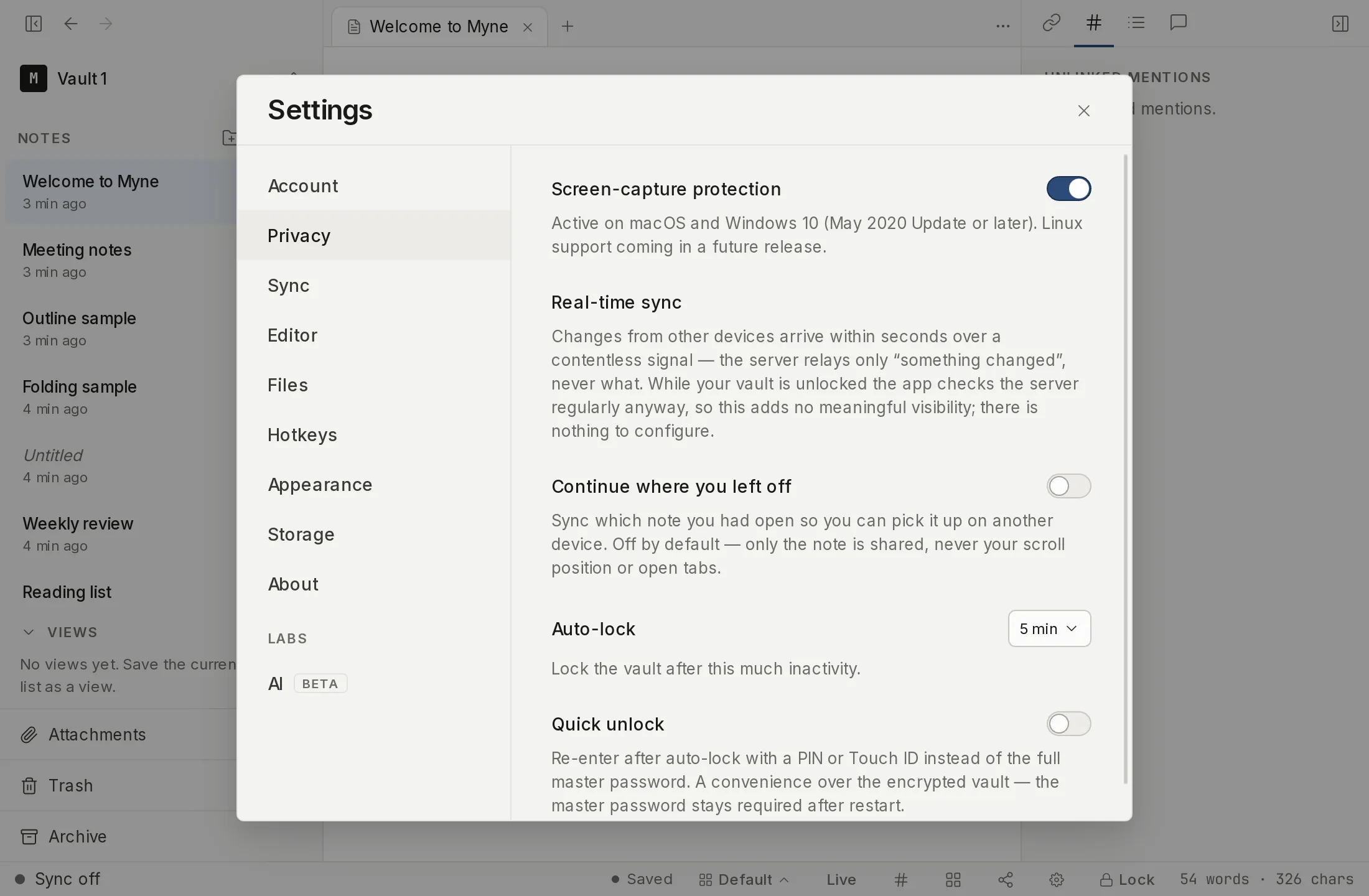
Auto-lock
After a period of inactivity, Myne locks your vault on its own and returns you to the Unlock screen, flushing your work first. You choose how long: 1, 5, 15, 30, or 60 minutes, and the default is 5.
There is deliberately no “Off”. Auto-lock is an always-on protection. You can make the timer longer, but you cannot disable it, because an unlocked vault left open indefinitely is exactly the exposure this guards against. Inactivity is measured at the machine level (your whole computer being idle), not just the Myne window; on some Linux desktop setups the detection is stricter and may lock sooner.
That describes the desktop app, which reads the operating system’s own idle signal. In a browser the measurement is weaker, and the difference is worth knowing. A page can only see what happens in its own tab, so walking away while you work in another window does not count as idle there. Browsers also slow or suspend a background tab’s timers, so the lock can land later than the minute you chose. Myne checks the deadline again the moment you return to the tab, so a tab left alone for an hour locks as soon as you look at it. The window a browser narrows is still smaller than the one the desktop app narrows, and the two are not the same protection.
What auto-lock does is narrow the window in which an unattended, unlocked vault sits exposed. It does not close it entirely. If someone reaches your device while the vault is still open, the timer hasn’t fired yet; lock it yourself with the bottom-bar control when you walk away.
Getting back in after a re-lock
When auto-lock fires it returns you to the Unlock screen, where your master password always reopens the vault. If you have set up quick unlock, a PIN field or a Touch ID button leads the screen, with the master-password form one Use password instead link away, so you can reverse the re-lock with a fast credential instead of retyping the full password. Quick unlock layers on top of the auto-lock-on-idle envelope; it does not change when the timer fires, only how quickly you get back in.
Two ceilings apply. Quick unlock allows five consecutive failed attempts; on the fifth, the stored credential is wiped and the vault falls back to the master password. And a configured PIN is unavailable on a cold start — after you quit and reopen Myne, the first unlock of the session always takes the full master password, after which the PIN option returns. A configured Touch ID credential is the exception: because macOS’s own biometric prompt already guards it, it stays available on a cold start. The full details, including how the credential is stored, live in the quick unlock article.
Screen-capture protection
Screen-capture protection asks your operating system to keep the Myne window out of screenshots and screen recordings. It is applied before the window is first painted, and it is on by default.
You can toggle it in the Privacy panel, and the toggle governs what happens after you unlock: the Welcome and Unlock screens are protected whatever the setting says, because that setting lives inside your vault and cannot be read until the vault is open. The panel says so when the toggle is off: “Protection always applies before unlock. After unlock, follows this preference.” Turning it off is what you do to take a screenshot of your own notes. If protection before unlock is what is in your way, see If the window looks black below.
Be clear about its reach:
- It is effective on Windows 10 (the May 2020 Update, build 19041) and later, and there only. The panel says so under the switch: “Effective on Windows 10 (May 2020 Update) and later. macOS and Linux have no system API for this, so it cannot block capture there.” On older Windows builds the request quietly degrades, and the window is blacked out in a capture rather than left out of it.
- On macOS, nothing is claimed. Myne still makes the call that used to do this, but Apple documents the constant behind it as one macOS no longer uses, and tells developers not to rely on it to keep content out of a capture. The call is kept because it still has an effect on some capture paths and costs nothing to keep. Treat a Mac as unprotected here, remote-control screen sharing included.
- On Linux, no display server lets an application ask to be left out of a capture, so there is nothing for Myne to call. That is how the display servers work rather than a feature Myne has not written yet. On X11 any client can read the screen, so there is nowhere to put the check. On Wayland the compositor decides, and two of them let you set it yourself, per window: KWin’s Hide from Screencast (Plasma 6.6, kept as a window rule from 6.7) and Hyprland’s
no_screen_sharewindow rule. Set it there if you need it; Myne cannot ask for it on your behalf. - In a browser, a page cannot ask a compositor for this at all, so the setting governs nothing there.
- Where it does work it uses the operating system’s own content-protection feature, so it is only as strong as that feature, and it is not anti-malware. It stops a cooperating screen recorder from catching the window; it cannot stop software that has already compromised your machine from reading what’s on screen.
If the window looks black
On Windows, protection works by asking the compositor to leave the Myne window out of every capture. Some software you might want to see the window is on the other side of that: remote-desktop tools, screen sharing in a meeting, and screen magnifiers such as ZoomText all read the screen the same way a recorder does. To them, Myne is a black rectangle.
That matters most before you unlock, because the setting above cannot help you there: it lives inside your vault, and your vault is closed. Behind that black rectangle are the screens you least want to be locked out of: your account number, the 24-word recovery phrase you are asked to write down when you create a vault, and the QR code for adding a device.
So there is a way out that does not need an open vault. On any screen before unlock:
- Press Tab, or Shift+Tab on the Unlock screen, where the password box already has the cursor. Either way the control you land on is a button labelled Turn off screen-capture protection: it is first on the screen, and invisible until you focus it, so it costs nothing on a screen you can already read, and a screen reader announces it whether or not the window is drawing.
- Press Enter. A dialog explains what turning it off means before anything is saved.
- Confirm. The window becomes visible to whatever was seeing black.
This is per device, not per vault. It applies before you unlock and after, it is not synced to your other devices, and it stays set until you turn it back on. The same switch is in the Privacy panel afterwards, as Allow screen capture on this device, and while it is on, the toggle above it is greyed out and says why. Two switches quietly fighting over one window is worse than one switch that tells you which one is winning.
If you cannot reach the keyboard control at all (you are talking someone through it over the phone, say), the Myne app also accepts a command-line flag. Start the app itself with it, not the myne terminal command, which does something else entirely and will answer unknown command:
# macOS
open -a Myne --args --disable-screen-capture-protection

# Linux
myne-desktop --disable-screen-capture-protection
On Windows, run Myne.exe with the same flag, from a terminal in the install directory or by adding it to a shortcut’s Target.
That turns protection off for one run and saves nothing on its own. Quit Myne first if it is already open. On Windows and Linux a second launch carrying the flag is handed to the window that is already running, so it takes effect there too, but macOS does not pass arguments to an app that is already open, so on a Mac the flag only counts at a fresh start. It is also the way back in if the saved setting is ever unreadable, because a setting Myne cannot read is treated as protection on, which is safer and recoverable with one flag.
Limits
Both controls protect a vault that is unlocked and on screen. Neither protects the encrypted files at rest (your password does that) or a machine that is already compromised. Together they reduce the everyday ways an open vault leaks, such as a shoulder, a screen-share, or an unattended desk, but not every possible one.