This article covers the everyday markdown you will use most. Myne renders it live: the markers fade and the formatting shows as you write. Put the caret on a marker — a heading’s #, a quote’s >, a bullet’s - — and that marker comes back so you can edit it, while the rest of the line keeps its shape. Nothing is rewritten, and what you see is a view of the bytes you typed.
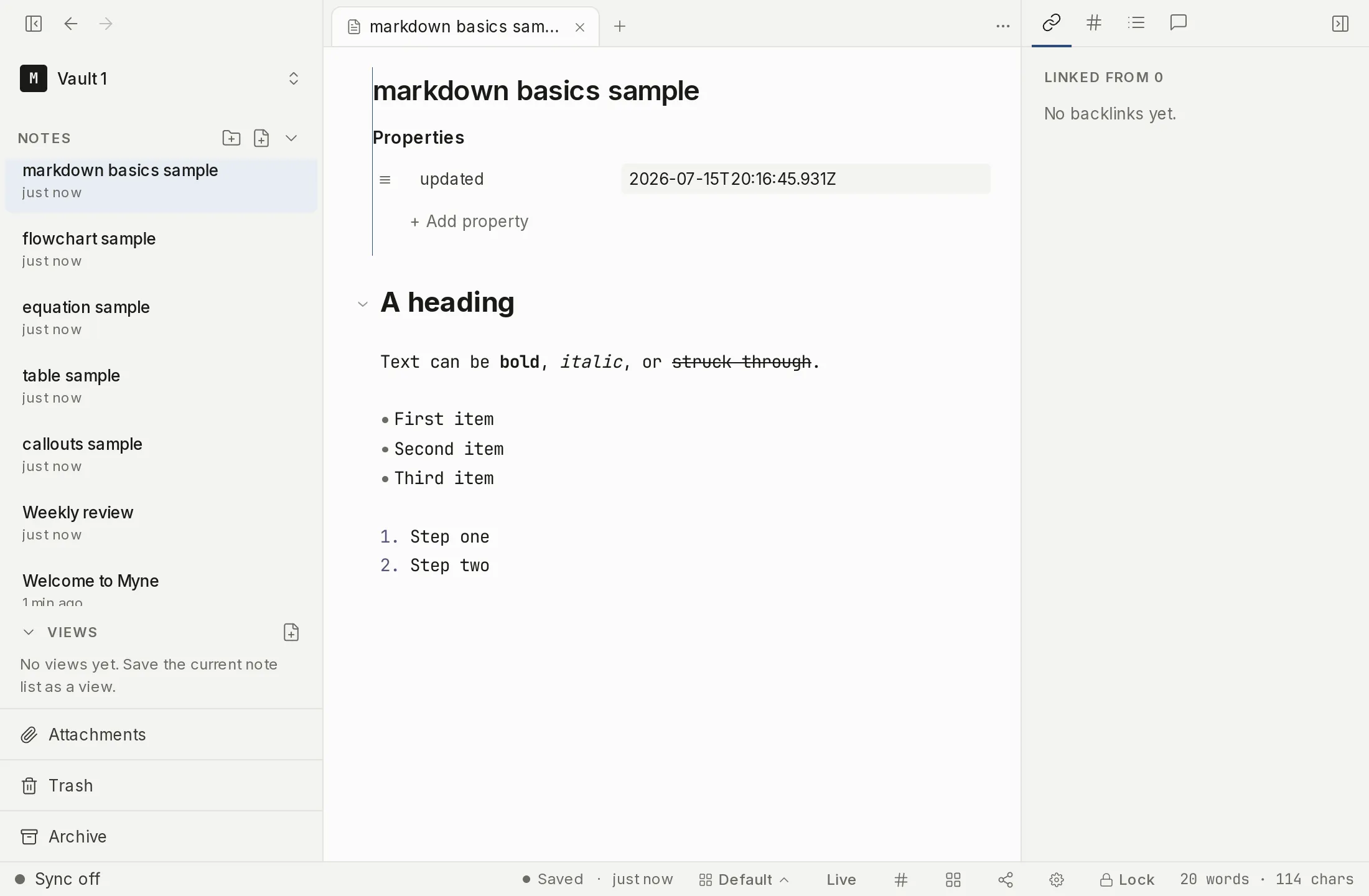
Headings
Write headings with # markers, from # Heading 1 through ###### Heading 6. New headings always use this # form. (If you import notes that underline a heading with === or ---, Myne reads and renders them, but it never converts your file to that form.)
You can cycle a line through heading levels with a shortcut (see Shortcuts below).
Emphasis and inline code
*italic*for italic,**bold**for bold.~~text~~for struck-through text.`code`for inlinecode.==highlight==for a highlighted span (the default yellow); the highlight palette has thirteen colors in all, stored as<mark class="hl-*">— see HTML and inline extras for the full list.~sub~and^sup^for subscript and superscript.
Bold, italic, strikethrough and inline code all have toolbar buttons. Bold, italic and inline code also have keyboard shortcuts (see Shortcuts below); strikethrough has no default shortcut, so the toolbar button is the way to reach it.
Lists
- Bullet lists start a line with
-. - Numbered lists start with
1.. - Task lists use
- [ ]for an open item and- [x]for a done one; the checkbox is clickable. A task line can also carry a due date, a priority and a repeat rule, which you set from controls rather than type — see Tasks.
Lists nest by indenting, and Tab on a list line does it for you: it lines the item up under the one above, whatever marker that one uses. This matters most on task lists. Markdown treats four spaces after an ordinary paragraph as a continuation of that paragraph rather than as a list, so a checkbox indented by hand under a line of prose quietly stops being a task and drops out of the Tasks panel. Tab never indents a line that far, so a todo you nest stays a todo.
Links, quotes, and rules
- Links:
[text](https://example.com). The URL hides while you read and comes back when your cursor is on the line. - Addresses on their own: a web address typed bare,
https://example.com, renders as a link, and so do the angle form<https://example.com>and a bare email address. - Block quotes: prefix lines with
>. - Horizontal rule: a line of
---. - Line breaks and escapes: end a line with a backslash for a hard break, and put a backslash before a character (like
\*) to keep it literal.
Of those link forms, only the bare and angle ones are clickable. Clicking one opens it outside Myne: your default browser for a web address, your mail app for an email address. A [text](url) link is styled but does not open on click; put your cursor on its line to see the address and copy it. Only http, https and mailto addresses are ever handed out that way, so a link written with any other scheme stays plain text rather than becoming one click from running.
Definition lists
Myne renders a tight definition list: a term on one line, immediately followed by : definition lines with no blank line between them:
Term
: The definition.
: A second definition of the same term.
Images
An image is . Myne never fetches a remote image: an image pointing at a web URL is not downloaded, by design, because loading it would reach out to a server and leak that you opened the note. Attachments you add to the vault are covered in Attachments.
Find in note
To find text inside the note you are reading, open the find bar (see Shortcuts). It does a literal, in-note search with a case-sensitivity toggle and no regular expressions. A replace row lets you replace the current match or rewrite every occurrence in one undoable step — see Find and replace in a note. The search runs in memory only; it is not written to disk.
Find looks inside the note you’re reading; to search across every note in your vault, use Search.
Shortcuts
| Action | macOS | Windows / Linux |
|---|---|---|
| Bold | ⌘B | Ctrl B |
| Italic | ⌘I | Ctrl I |
| Inline code | ⌘E | Ctrl E |
| Cycle heading level | ⌘⇧H | Ctrl Shift H |
| Toggle bullet list | ⌘⇧8 | Ctrl Shift 8 |
| Toggle numbered list | ⌘⇧7 | Ctrl Shift 7 |
| Toggle task list | ⌘⇧M | Ctrl Shift M |
| Insert wikilink | ⌘⇧L | Ctrl Shift L |
| Find in note | ⌘F | Ctrl F |
| Select all (scoped) | ⌘A | Ctrl A |
Select all (scoped) is Myne’s ⌘A: with your cursor in the body it selects the body and leaves the frontmatter alone, and with your cursor in the frontmatter it selects the frontmatter only. In a note with no frontmatter it selects the whole note.
These are the defaults. You can change any of them under Settings → Hotkeys, which also lists every shortcut in the app.