Save the current editor layout under a name like Writing or Research, then switch between named workspaces as your task changes. Switching auto-saves the layout you are leaving, so each workspace keeps its own arrangement. Like the rest of your layout, workspaces are saved best-effort rather than on every keystroke.
What a workspace saves
A named workspace stores the arrangement of your editor, not the notes themselves. Saved under a name you choose, it captures the set of open tabs, the split-pane layout, which pane is focused, which tabs are pinned, which panes are stacked, and each tab’s view mode (see View modes).
Where your cursor sat and how far you had scrolled are not part of it. Those are held in memory for as long as the pane stays open, and they are gone after a lock, a restart, or a switch that rebuilds the pane.
A workspace does not copy or move any note; switching workspaces rearranges what is on screen, while your notes stay exactly where they are in the vault.
Saving and switching workspaces
You start with a single workspace named Default. From there you can build as many as you like:
- Save current as… clones the layout you are in under a new name and switches to the clone. The workspace you were in is left untouched, so this is how you branch a fresh layout off the current one.
- Switch moves to another workspace. The layout you are leaving is auto-saved first, so you can always switch back and find it the way you left it.
- Rename changes a workspace’s name. Switching is by stable identity, so renaming never breaks which workspace is active.
- Delete removes a workspace.
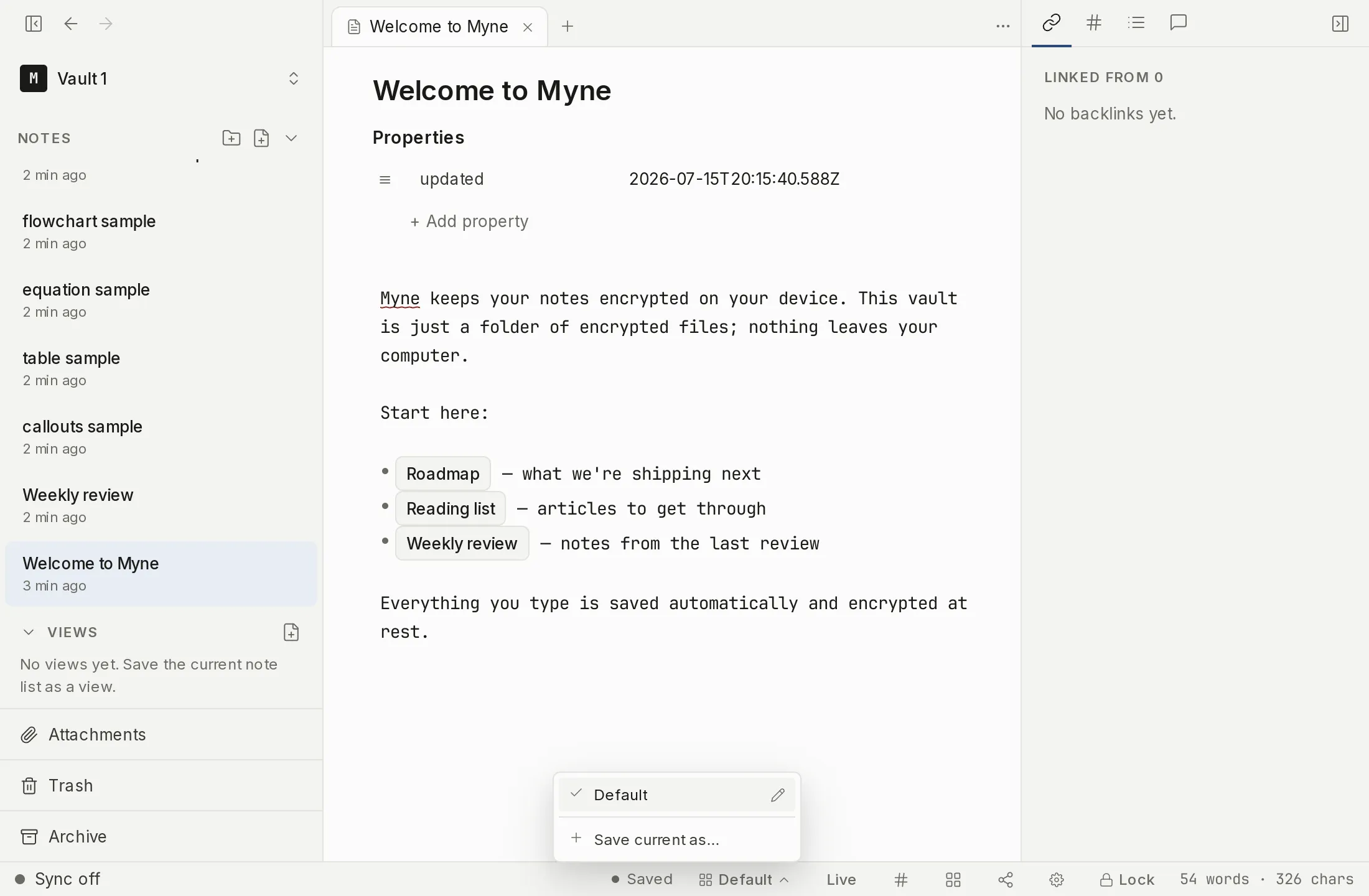
The discoverable surface is the workspace chip at the right of the bottom bar, which shows the active workspace’s name. Click its up-chevron to open a dropdown that lists your workspaces, with a pencil to rename each row and a Save current as… entry at the bottom. Selecting a different row switches to it.
Renaming and deleting workspaces
Rename a workspace from the pencil next to its row in the dropdown, or with the Rename workspace… command. A text prompt opens with the current name filled in; edit it and choose Rename.
Delete the active workspace with the Delete workspace… command. If you delete the last remaining workspace, Myne does not leave you with none — it creates a fresh, empty workspace named Default in its place, so there is always at least one to work in.
How layouts are saved
Myne does not write your workspace to disk on every keystroke. Layout changes are saved best-effort: writes are coalesced to at most once every five minutes or so of active use, and again whenever you close or lock Myne normally. Switching workspaces auto-saves the layout you are leaving into memory, but that staged layout reaches disk on the same coalesced schedule.
The practical consequence: if Myne is interrupted by a hard crash or power loss, it may restore a workspace layout up to about five minutes older than your very last arrangement. Your notes themselves are not at risk from this — their content is handled by autosave (see Notes and folders); only the arrangement of tabs, panes, and workspaces can lag.
The workspace chip fades along with the rest of the chrome in focus mode. While you are in focus mode, reach the workspace commands through the command palette instead.
Limits
Workspace names and layouts stay inside the encrypted vault.workspace blob — they are not written to disk in the clear. Because layout changes are saved on a coalesced, roughly five-minute schedule rather than per switch, someone who can read your vault folder can at most infer that some workspace change happened within a five-minute window, from the file’s modification time. They cannot see the content of that change: not your workspace names, not the layouts, and not which notes any workspace holds. This is a deliberate, bounded trade described in How Myne protects your notes.
Shortcuts
The workspace actions live in the command palette under the View category — Save workspace as…, Switch workspace…, Rename workspace…, and Delete workspace…. None has a default keyboard shortcut; they are rebindable only, so you can assign your own in custom hotkeys. From the palette, Switch workspace… cycles to the next workspace in order.
| Action | macOS | Windows / Linux |
|---|---|---|
| Open command palette | ⌘K (alias ⌘P) | Ctrl K |
| Save / switch / rename / delete workspace | no default — rebindable | no default — rebindable |