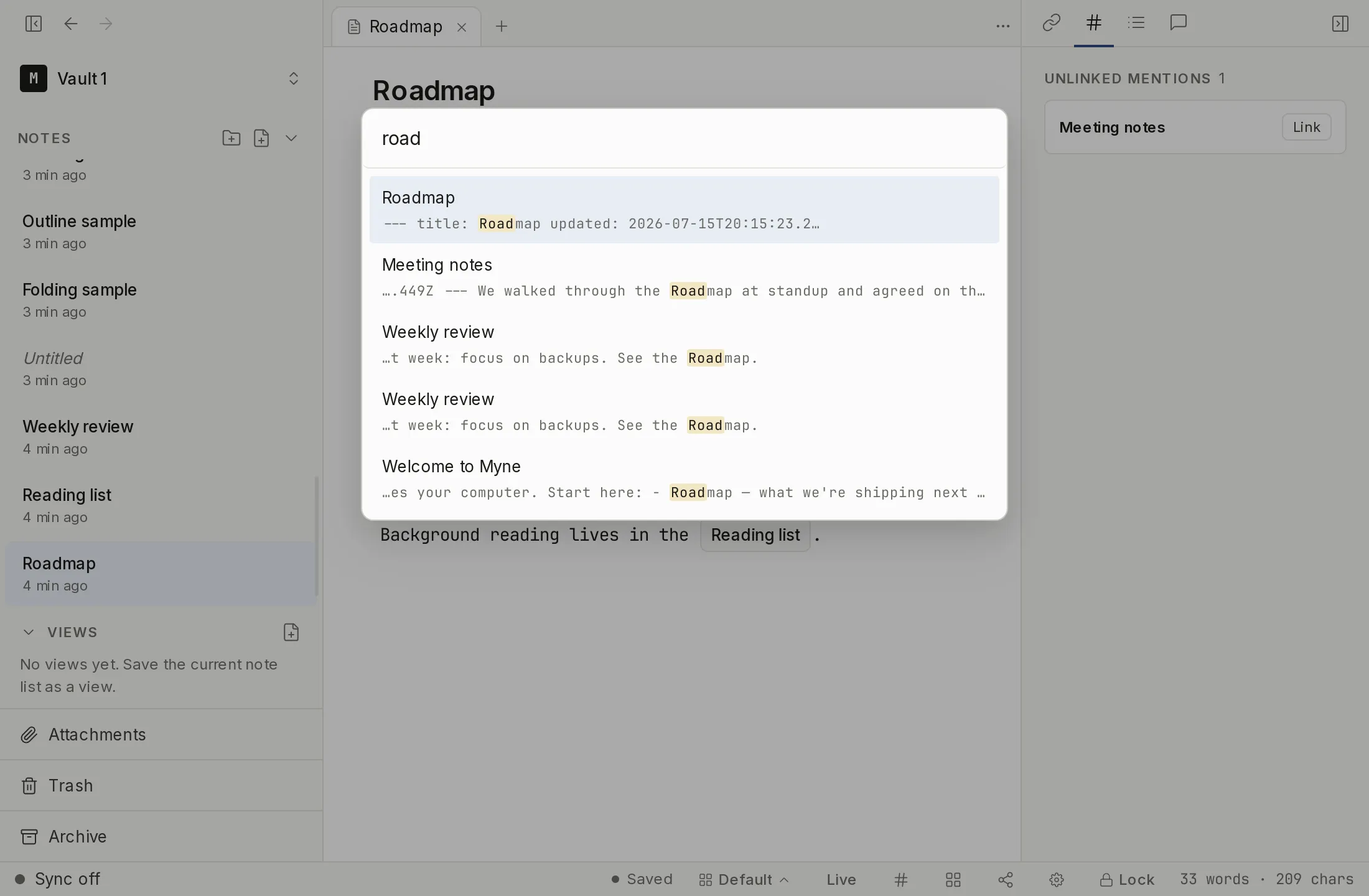
Search lives in the command palette. Press ⌘K (or its alias ⌘P) to open it: it shows commands first, and as you type it searches the full text of every note in your vault.
What it searches and how it ranks
Search covers each note’s title and body, and ranks results by relevance (using BM25). A few specifics worth knowing:
- All your terms must match: typing two words finds notes containing both.
- The last word matches as a prefix, so results narrow as you type
rus→rust. - Title matches rank higher than body-only matches.
- Results are capped at the top matches, so the list stays focused.
- Search understands word stems in English, Turkish, and German: searching “running” also finds “run”. Other languages match on the exact words.
Results update live as your notes change, because the index keeps up with your edits.
Search operators
A plain query — one or more words with no special syntax — uses the ranked search described above. Adding an operator, a boolean, or a quoted phrase switches search into a filter: it keeps every note that matches and drops the rest, rather than ordering the whole vault by relevance.
Field operators
Prefix a term with one of these to match a specific part of a note:
| Operator | Matches |
|---|---|
file: | the note’s title (file:roadmap) |
content: | a word anywhere in the note’s text (content:invoice) |
section: | notes with a heading matching the query (section:roadmap) |
tag: | notes carrying a tag (tag:rust) |
path: | notes in a folder (path:Projects/Rust) |
task: | notes with a task item; task: alone matches any note that has one, task:review narrows to tasks containing a word |
Put quotes around a value that contains a space: tag:"reading list". A prefix Myne doesn’t recognize (note:, http:) is treated as ordinary search text, so pasting a link never breaks the query.
Completing an operator
You don’t have to remember the syntax. Type the first letters of an operator and the palette lists the ones that match, each with a one-line description; the arrow keys move the highlight and Tab or Enter completes it. After tag: or path:, it offers the tags and folders you already have, so you can pick one instead of typing it — a value containing a space is quoted for you.
Combining terms
- Several terms match together.
rust asyncfinds notes containing both — the same implicit “and” as plain search. OR(uppercase only) matches either side:rust OR zig. Lowercaseoris just a word to search for.-excludes:rust -asyncfinds notes with “rust” but not “async”, and it works on operators too, as in-tag:archive.- Parentheses group:
(rust OR zig) -tag:draft. - “Quoted phrases” match those words in that order, next to each other:
"quarterly review". /pattern/matches a regular expression against note titles and text, case-insensitively:/v0\.\d/. A pattern Myne can’t read matches nothing rather than failing.
These compose, so tag:reading -tag:done "to read" is one query. A malformed query — an unclosed quote or bracket — falls back to plain text, so a stray character never breaks the search box.
Attachment text
Where Myne can read text out of a file you have attached, that text is folded into the owning note’s searchable content. A note can then turn up in search on words that appear inside its attachment, not only its own prose, and it surfaces the same way a body match does.
Text extraction happens entirely on your device — no file is ever sent anywhere to be read. It covers the text layer of PDFs, Word .docx files, and plain-text files such as .txt, .md, and .csv. Scanned PDFs and images have no text layer, so Myne reads them with on-device optical character recognition instead: a background worker — separate from the unlock path, so it never slows opening your vault — recognizes text in image attachments and scanned PDFs and folds it into search the same way. No file is sent anywhere to be read, and there is no cloud recognition step. Recognition is on by default; you can turn it off for a device under Settings → Files, with the “Search inside images and scanned documents” switch, which stops the extraction while keeping any text already found. Audio has no text layer either, but you can transcribe a voice note on demand, and that transcript is folded into search the same way. The speech-to-text model ships with Myne and runs on this device; the switch is Settings → Transcription — see Voice notes. The extracted text is stored encrypted at rest, under the same protection as the rest of your vault, and is removed when you permanently delete the attachment.
What a result shows
Each result shows the note’s title. A result from an archived note carries a small Archive badge, so you can tell it is out of your working set. A hit that came from text inside an attached file carries a paperclip in attachment badge; opening the row still opens the note the file is attached to.
A body match also shows one line of context under the title, with the matched words highlighted, so you can see why a note is in the list. Myne builds that line on your device by decrypting the notes already shown to you — a handful per search, never the whole vault — and the search index itself holds only what it needs to rank matches, not a readable copy of your content. Nothing is decrypted for a note that is not already on the list in front of you. When a note matched in its body and Myne could not quote the matching words — a stem-only match, where the word in the note is not the word you typed — the row falls back to a small ↳ matched in body hint instead.
Notes in the Trash and notes marked as templates are hidden from the sidebar and never appear in search results.
Private by design
The search index — including any extracted attachment text — is encrypted like your notes; if it’s ever missing, Myne rebuilds it, which costs one slower unlock and nothing more. How that fits the wider model is covered in How Myne protects your notes.
This is the in-app search; the search box on this website is separate and only searches these guide pages.
Limits
Search reads the vault’s own encrypted index and only what has been indexed. Attachment text is included where a text layer exists and, for image attachments and scanned PDFs, where on-device optical character recognition finds legible text — both run entirely on your device, with no cloud extraction. Recognition is best-effort: a blurry photo, handwriting, or a very small image may yield nothing, and text the recognizer is not confident about is dropped rather than guessed.
Two operators read note text rather than the index, and are bounded because of it: a quoted phrase is checked against the top-ranked candidates for those words, and a /pattern/ search scans your most recently updated notes rather than every note in the vault. A phrase or a pattern that only occurs deeper in a large vault can therefore be missed.
Search is empty while the vault is locked; there is no index to read until you unlock.
Shortcuts
| Action | macOS | Windows / Linux |
|---|---|---|
| Open the command palette / search | ⌘K (alias ⌘P) | Ctrl K (alias Ctrl P) |