A periodic note is one note per stretch of time: a day, a week or a month. A journal, a weekly review, a monthly plan. Myne’s periodic notes are deliberately plain. Each is an ordinary note, and one command opens the current one, creating it the first time and reopening it after.
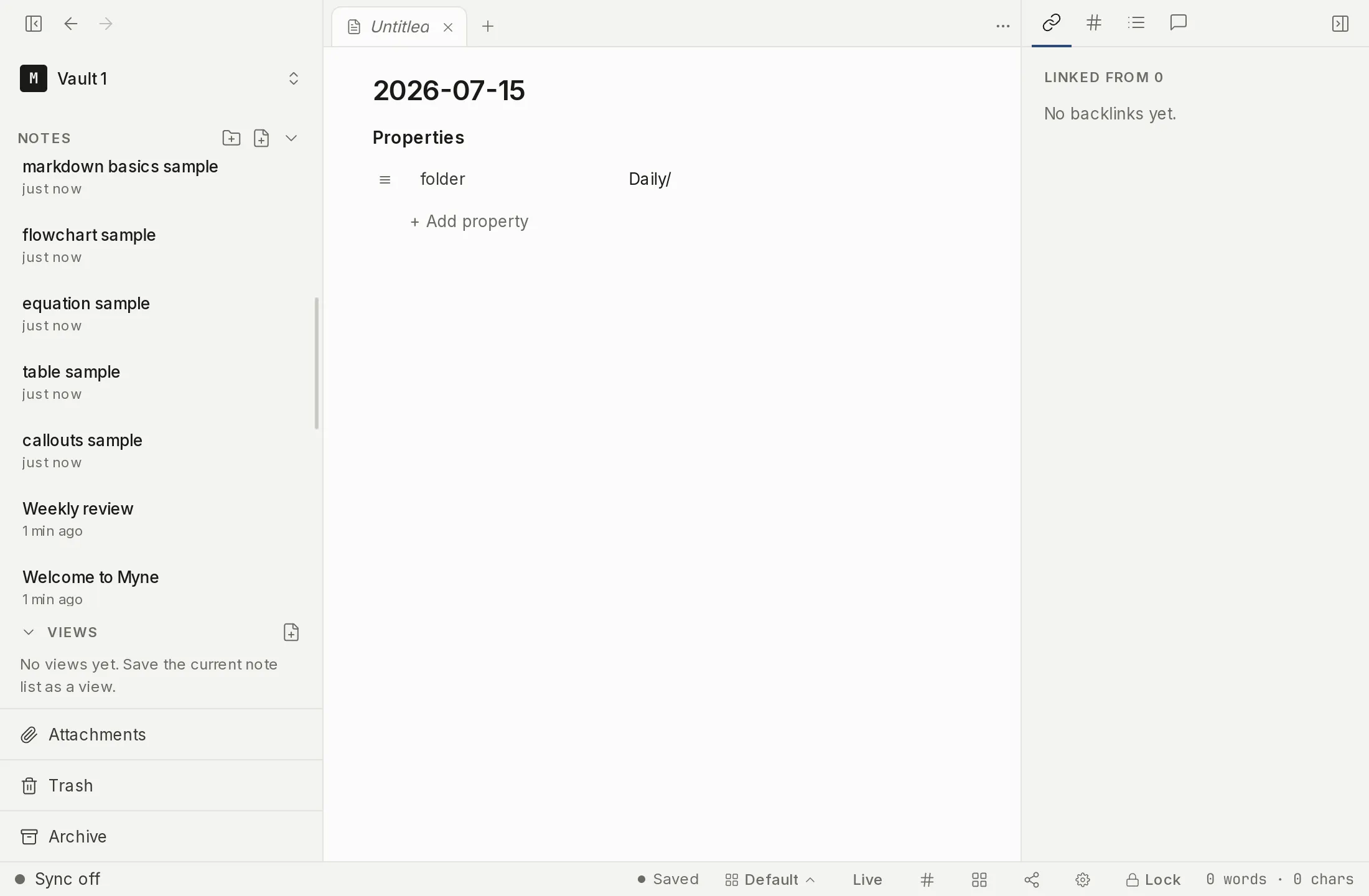
Opening the current note
Open the command palette and run Open today’s note, Open this week’s note or Open this month’s note. The first time you run one in a given period, Myne creates that period’s note; every time after, it reopens the same one. It is idempotent: you cannot end up with two notes for the same week by running it twice, and running the weekly command on Monday and again on Friday lands you in the same note.
Earlier periods are reached by browsing the folder they are filed in. There is no calendar, no date picker and no previous/next arrow, by design. Each command always means the current one.
Settings
Each period has its own folder, title format and template, in Settings → Editor, under Periodic notes. The three sections, Daily, Weekly and Monthly, carry the same three controls.
Once your vault has folders, the folder control is a picker over the ones you already have rather than a path you type, so filing weekly notes somewhere new means creating that folder in the sidebar first. In a brand-new vault with no folders yet it is a plain text field instead, since a picker with nothing in it would be worse. A folder you choose here stays visible in the sidebar even before its first note exists.
The defaults are:
| Period | Folder | Title format |
|---|---|---|
| Daily | Daily/ | YYYY-MM-DD |
| Weekly | Weekly/ | gggg-[W]ww |
| Monthly | Monthly/ | YYYY-MM |
Title formats
A title format is a small pattern. These pieces are replaced:
| Piece | Means | Example |
|---|---|---|
YYYY | Four-digit year | 2026 |
MM | Two-digit month | 08 |
DD | Two-digit day | 24 |
gggg | Four-digit week-year (see below) | 2026 |
ww | Two-digit ISO week number | 35 |
Anything else is kept as written. To keep a letter that would otherwise be replaced, put it in square brackets: gggg-[W]ww gives 2026-W35, and the W survives because the brackets protect it.
A pattern you already use in another app will be SPELLED the same here, and gggg and ww always mean the ISO week, whatever that app was set to. Most apps that use these letters let a locale decide where a week starts. Myne does not: weeks start Monday and the week number is the ISO one, always. That matches those apps under European locales and differs from their US default, so a gggg-[W]ww pattern carried over from an app on a US locale will produce a different week number for part of the year, and the notes it makes sit beside your old ones rather than in them. Myne freezes it this way on purpose: a week boundary that moved with a setting would change which note “open this week” opens, silently, for every note already written.
The same pieces work in all three formats, daily included. If you set a daily note title format before periodic notes existed, check it once. gggg, ww and square brackets used to be ordinary characters there and are pattern pieces now, so a format like YYYY-MM-DD [journal] used to produce 2026-08-26 [journal] and now produces 2026-08-26 journal. Myne finds a note by its folder and its title, so the first “Open today’s note” after the change makes a new note rather than opening the one already there. Nothing is deleted: the older notes keep the titles they were written with and stay in the folder. This is the same thing that happens whenever you edit a title format yourself.
A note about weeks
Weeks start on Monday, and the week that contains the year’s first Thursday is week 1. This is the ISO 8601 rule, and Myne does not offer a setting to change it, because changing it would quietly re-point every weekly note you already have.
One consequence is worth knowing: the first days of January can belong to the previous year’s last week, and the last days of December to the next year’s first. 1 January 2027 falls in week 53 of 2026, so its weekly note is titled 2026-W53. That is why the week token is gggg and not YYYY: the week-year is what keeps one week as one note across the year boundary.
Pairing with a template
If you keep a template for a period’s layout, set it as that period’s Template, and each new note for that period starts from it. Alongside the usual placeholders (see Templates), two name the period itself:
{{period_start}}: the first day of the period{{period_end}}: the last day of the period
So a weekly template containing Week of {{period_start}} to {{period_end}} writes the real dates when the note is created. {{date}} always means today, in every template and every period, so it stays useful for “written on”.
From the terminal
If you use the Myne command-line tool, each period has a pair of commands:
myne weekly                  # print this week's note, creating it if needed
myne weekly:append "…"       # append a line to it
myne monthly
myne monthly:append "…"
myne daily and myne daily:append work as before. If you have set a display timezone in Settings, these commands print a short note saying they used this device’s clock instead: the app applies your override, the command-line tool does not.
Limits
A periodic note is matched by its folder and its title together. If you rename this week’s note, or move it out of its folder, Open this week’s note no longer recognizes it and will create a fresh one for the week. Keep both if you want the command to keep finding it.
For the same reason, pointing two periods at the same folder and the same title format makes both commands open the same note. Settings warns you when you do, and does not stop you.