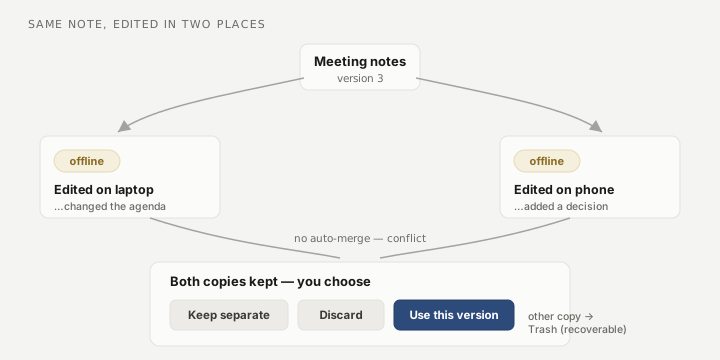
On a vault in the original format, when the same note is edited on two devices before they have synced with each other there is no single correct merge, so Myne keeps both copies rather than overwriting one. Nothing is silently lost. The extra copies are held out of your main note list and gathered in one place for you to reconcile. Once you upgrade the vault format, notes merge on their own instead — that is covered at the end of this page.
Finding conflicts
When conflicts exist, the sync status indicator reads N conflicts to review. Open Settings → Sync → Conflicts to see them. Conflicting copies are grouped under the note they diverged from, so you can tell which original each copy belongs to. Each copy shows four actions.
Choosing what to keep
- Compare opens the conflicting copy side by side with the note it forked from, so you can see what actually differs before deciding. The comparison ignores Myne’s own sync bookkeeping and shows only the text you wrote; if the two are the same, it says so. The same three decisions below are available inside the comparison, and Back to conflicts leaves it. A copy whose original note no longer exists has nothing to compare against, and Myne says that rather than showing an empty column.
- Keep as separate turns the conflicting copy into an ordinary, standalone note. Use this when both versions are worth keeping — you end up with two notes and can merge them by hand later.
- Discard removes the conflicting copy. You keep the other side.
- Use this version promotes this copy to be the surviving note. This moves the other (local) version to Trash. Read the note below before using it.
”Use this version” moves the other copy to Trash
Choosing Use this version makes the copy you picked the one note going forward and sends the previous local version to Trash. Right after, a short notice confirms “Local version moved to Trash.” and offers Undo, which reverses the choice. If you miss the undo, the previous version is still recoverable from Trash until Trash is emptied.
After you upgrade the vault format
On a vault upgraded to the new format, notes no longer fork into conflict copies. Two devices editing the same note are merged into one note that keeps both sets of edits, and Myne shows a short Updated from another device notice when that happens. It names no note and no device, and it asks nothing of you. There is nothing to resolve, so merged notes never appear under Conflicts, and the section is empty on an upgraded vault.
The keep-both flow above is what a vault still in the original format does, so nothing on this page stops applying until you upgrade. One case on the new format is decided rather than merged: if one device deleted the note while another edited it, the deletion wins and that edit is not kept.
Limits
On the original vault format, Myne’s conflict handling is keep-both, not automatic merging: it never blends two edited versions of a note into one, because doing so could quietly corrupt your text. Resolving a conflict is a decision you make. On the new format the merge is automatic and keeps both sets of edits, so there is no decision to make and no undo button on the merge itself. If you want an earlier state of that note, its snapshots are the history to go back to. Discard and Use this version both send a copy to Trash rather than erasing it immediately, so a mistake is recoverable — until you empty Trash, which is the point of no return. Conflicts are a normal consequence of editing offline on two devices; they are not a sign that anything was lost or that the server misbehaved. A genuine integrity problem is surfaced separately as an alert, described in Reading sync status.