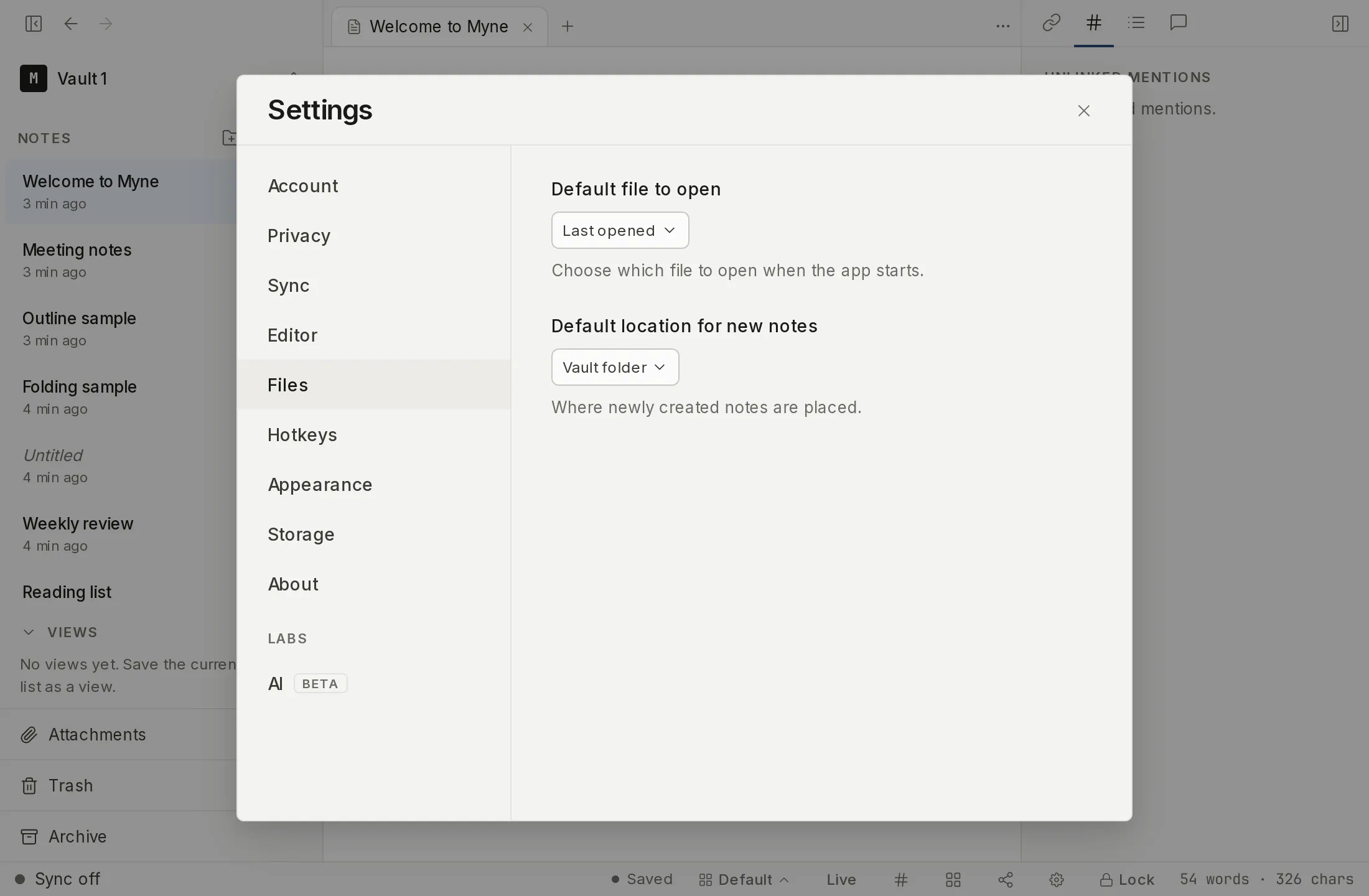
The Files panel holds four file-oriented preferences: which file opens when the app starts, where new notes are created, whether images are compressed as you import them, and whether Myne reads text out of image and scanned-PDF attachments so search can find them. All four are stored in your vault’s encrypted preferences and take effect the next time the relevant action happens.
Prerequisites
- A vault open. Settings is only available once a vault is unlocked.
Opening the Files panel
Open Settings from the gear in the bottom bar or with ⌘,, then choose Files in the left rail. It sits after Editor and before Transcription.
Default file to open
The Default file to open control decides what you see when the app starts. It offers three choices:
- Last opened reopens the note and layout you had when you last quit.
- New note starts a fresh, empty note.
- Specific note opens one note you pick. Choosing it reveals a Note to open on startup picker; search for and select the note.
Choosing New note or Specific note does not touch your saved workspace. Myne skips restoring the saved layout for that session but leaves it on disk, so switching the setting back to Last opened brings your panes back. If a specific note is later deleted or cannot be read, its pane shows a missing-note state rather than clearing the setting on a transient read miss.
Default location for new notes
The Default location for new notes control decides where a newly created note is placed. It offers three choices:
- Vault folder places new notes at the top level of the vault.
- Same folder as current note places a new note beside the note you have open. When no note is selected, it falls back to the vault folder.
- In the folder specified below reveals a Folder for new notes control. Search your vault’s folders and pick one, so the path is chosen rather than typed from memory. A vault with no folders yet gets a plain field instead: type a path such as
Inbox/, and it becomes a folder when the first note lands there.
This is only the default. Creating a note through a folder’s own “new note here” action always places it in that folder, regardless of this setting. See Notes and folders for the sidebar actions that create notes.
Compress images on import
The Compress images on import control decides whether an image you paste or drop into a note is downscaled and re-encoded before it is encrypted and stored. It is on by default, so a vault of screenshots stays smaller on disk, in backups, and over sync. The transform is irreversible: Myne does not keep the original file, so anything added while this is on cannot be restored to its full-resolution bytes later. This preference is shared across the vault, so turning it off applies to the whole vault. See Attachments for how attachment files are stored.
Search inside images and scanned documents
The Search inside images and scanned documents control decides whether Myne reads text out of image attachments and scanned PDFs so search can find them by their contents. It is on by default and runs on your device — nothing is uploaded. This is a device-local choice: turning it off here stops the background extraction and the extraction that runs when you import a file, but does not change the setting on your other devices. Text already extracted is kept, so turning it back on resumes rather than starts over. See Search for how attachment text is folded into search results.
Limits
All four settings are stored inside your vault’s encrypted preferences. The startup-file and new-note-location controls change where notes land and which one opens on launch — not what is protected or how. Selecting New note or Specific note as the startup file never deletes or overwrites the multi-pane layout saved from your last Last opened session; that layout stays on disk untouched until you return to Last opened.
Compress images on import changes an attachment’s size and fidelity, not its protection — the file is encrypted either way. The compression happens once, at import, and cannot be undone: Myne does not keep the original bytes.
Search inside images and scanned documents runs the text extraction on your device; nothing is uploaded, and the extracted text is stored inside the vault’s own encrypted files, like the rest of your notes. Turning it off stops new extraction but does not remove text already extracted.