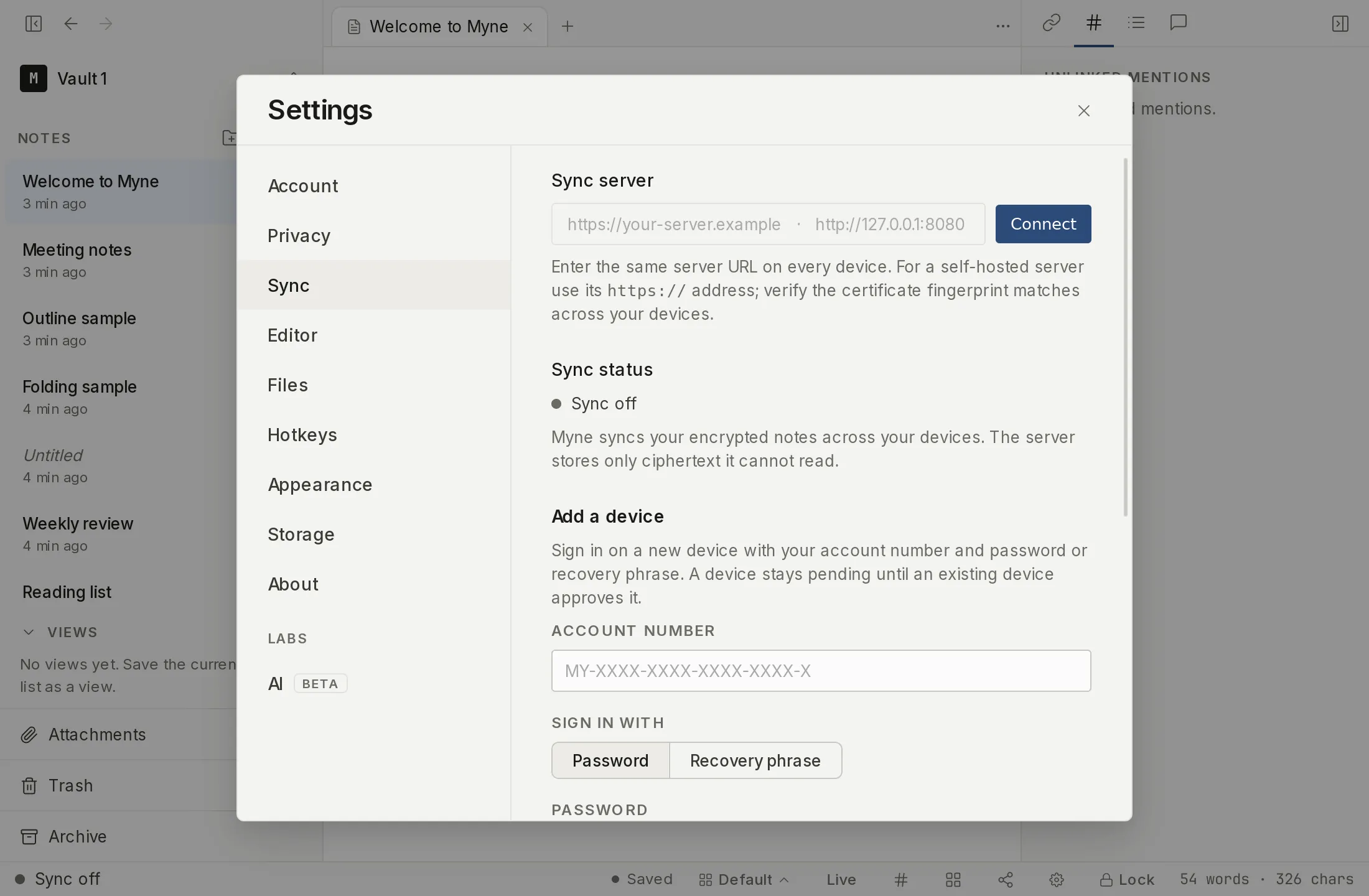
Turning on sync has three parts: pointing Myne at a server, accepting the beta terms on this device, and connecting the device to your account. This page covers the first device — the one that seeds the account. Adding a second device is covered separately in Add a device.
Prerequisites
- An unlocked vault.
- A sync server address — either Myne’s hosted server or the
https://address of a server you run yourself. A server you run yourself is available now; Myne’s hosted server is currently a free, invite-only beta. If you do not have one yet, Run your own sync server brings one up on a machine you control. - Your account number, which Myne showed once when you created your vault. Settings does not display it again, so use the copy you saved then.
Your account number
Myne identifies you by an account number, not an email address. It is a self-generated value that starts with MY-, shown once when you created your vault, where you could copy it or save it to a file. Settings does not display it again, so keep the copy you saved. It is what you type to connect a device.
It is not an encryption key and it decrypts nothing on its own. It is, though, what a sync server accepts as your identity, and a joining device has to fetch your account’s encrypted key file before it can authenticate, so anyone holding your account number can ask the server for that file, from anywhere, with no device of yours. The file reveals nothing by itself; what it hands someone is the material to start guessing your master password on their own hardware. Treat the number like cash: fine to type into your own devices, not something to put in a screenshot or a support thread. Create your vault makes the same point at the moment the number is first shown.
Because there is no email, there is also no email-based recovery; keep your account number and recovery phrase somewhere safe.
Set the server
- Open Settings (the gear in the bottom bar, or
⌘,/Ctrl ,) and select the Sync panel. - Under Sync server, enter the server URL. Use the
https://address for a hosted or self-hosted server; a local server on the same machine can use its loopbackhttp://address. - If your server is a closed beta, it also asks for an invite code — the shared code the operator gave you. Enter it in the Invite code field under the address. An open server needs none, and the field is safe to leave empty; a server that requires a code refuses a new account without it, with a message that says so rather than a generic failure. Adding another device to an account you already have does not ask for the code again.
- Choose Connect. Once connected, the button rests as a disabled Connected; it becomes available again as soon as you edit the address.
For an https server, Myne checks the server’s certificate against the public certificate authorities and checks the server name, on the first connection and every one after it. There is nothing for you to set up and no fingerprint to compare. Myne’s own hosted server is checked the same way as one you run yourself. A loopback http server has no TLS, so there is no certificate to check. Server certificates covers what the check does and does not prove.
Enter the same server URL on every device you want to sync.
The server’s certificate is checked automatically
A certificate has a lifetime, so it is renewed on a schedule. A renewed certificate with a valid replacement is simply a valid certificate, and sync continues; there is no “certificate changed” state to clear and nothing for you to re-enter. If a server presents a certificate that fails the check, sync stops with a clear failure rather than connecting anyway. The remedy there is about the server, not a fingerprint you paste: check the address and that the certificate is valid. Server certificates covers what the check does and does not prove.
In a browser
The browser client does not have these steps. It syncs with one server, fixed when the deployment was built, so Sync server shows that address read-only, with no field to edit and no Connect button: “This client syncs with one server, set when it was deployed. It cannot be changed from here: the page is only allowed to talk to this one address.”
There is no fingerprint to compare there either, and Myne does not do the certificate check itself. A page cannot read a server’s certificate, so the panel names what does the checking instead: “Server certificate verified by this client’s trust store.” The check is real, but it is your browser’s rather than Myne’s.
Accept the beta terms
Setting a server does not start any syncing. Under Add a device, Myne puts a Review the beta terms button where the enrolment form would be, and does not render the form until you accept. Pressing it opens a dialog headed Before you turn on sync, which states that sync is a free beta with no warranty and no uptime promise, that your notes cannot be recovered if you lose both your master password and your recovery phrase, what happens when the beta ends, and what the operator can and cannot see. Read the full terms opens the published text on myne.md.
Choose I understand, turn on sync to accept, or Cancel to close the dialog and leave the gate standing. Every device you add later is asked the same thing on its own screen: the acceptance is recorded on the device in front of you and is never carried across by sync.
The first device
The first device on an account is the one you are setting up now, so there is nothing yet to approve it against — it self-approves. From this point, sync status shows Synced when the device is up to date (see Reading sync status), and any further device you connect will wait for approval from a device that already has access.
Limits
Setting a server does not weaken your at-rest protection: your notes are still encrypted with keys derived from your password, and the server stores only ciphertext (see How sync works). The certificate check confirms this device can verify the server it is talking to; it is not a guarantee about the operator, who can still see connection metadata. Sync is not a substitute for a backup — it keeps devices in step, including propagating deletions, rather than preserving a fixed snapshot.
Shortcuts
| Action | macOS | Windows / Linux |
|---|---|---|
| Open settings | ⌘, | Ctrl , |