Adding a device connects it to your account so it syncs the same notes. A device you add with your password waits until a device that already has access approves it, and both devices then compare a short verification code to confirm they are on the same account. This page covers both ends of that flow.
Prerequisites
- Sync already turned on for the account (see Turn on sync).
- Your account number, and either your password or your 24-word recovery phrase.
- The sync server URL.
- Accepting the beta terms on the device you are adding.
Accept the beta terms
Before a device syncs for the first time, Myne holds the join behind the beta terms. From the welcome screen the dialog opens straight away; from Settings → Sync the enrolment form is replaced by a Review the beta terms button that opens the same dialog. It is headed Before you turn on sync and states four things: what this is (sync is a free beta, with no warranty and no uptime promise); what happens if you lose both your master password and your recovery phrase (your notes cannot be recovered, by you or by us, because there is no reset); what happens when the beta ends; and what the operator can and cannot see. Read the full terms opens the published text on myne.md.
Choose I understand, turn on sync to continue, or Cancel to leave it for now. Every device is asked separately. The acceptance is recorded on the device in front of you and is never carried across by sync, because what it records is that the person holding that device read the text. If the terms are rewritten, the gate appears again.
On the new device
There are two starting points, depending on whether the device already has your vault:
- A fresh device with no vault. On the welcome screen, choose Add this device to an account. Enter the sync server URL, your account number, and your password. Name this device comes filled in with a suggestion based on the kind of machine you are on — edit it or leave it; it is the name your other devices show in their device list, and you can rename it later. Myne fetches your encrypted vault from the server, unlocks it, and connects the device. This path does not need your recovery phrase.
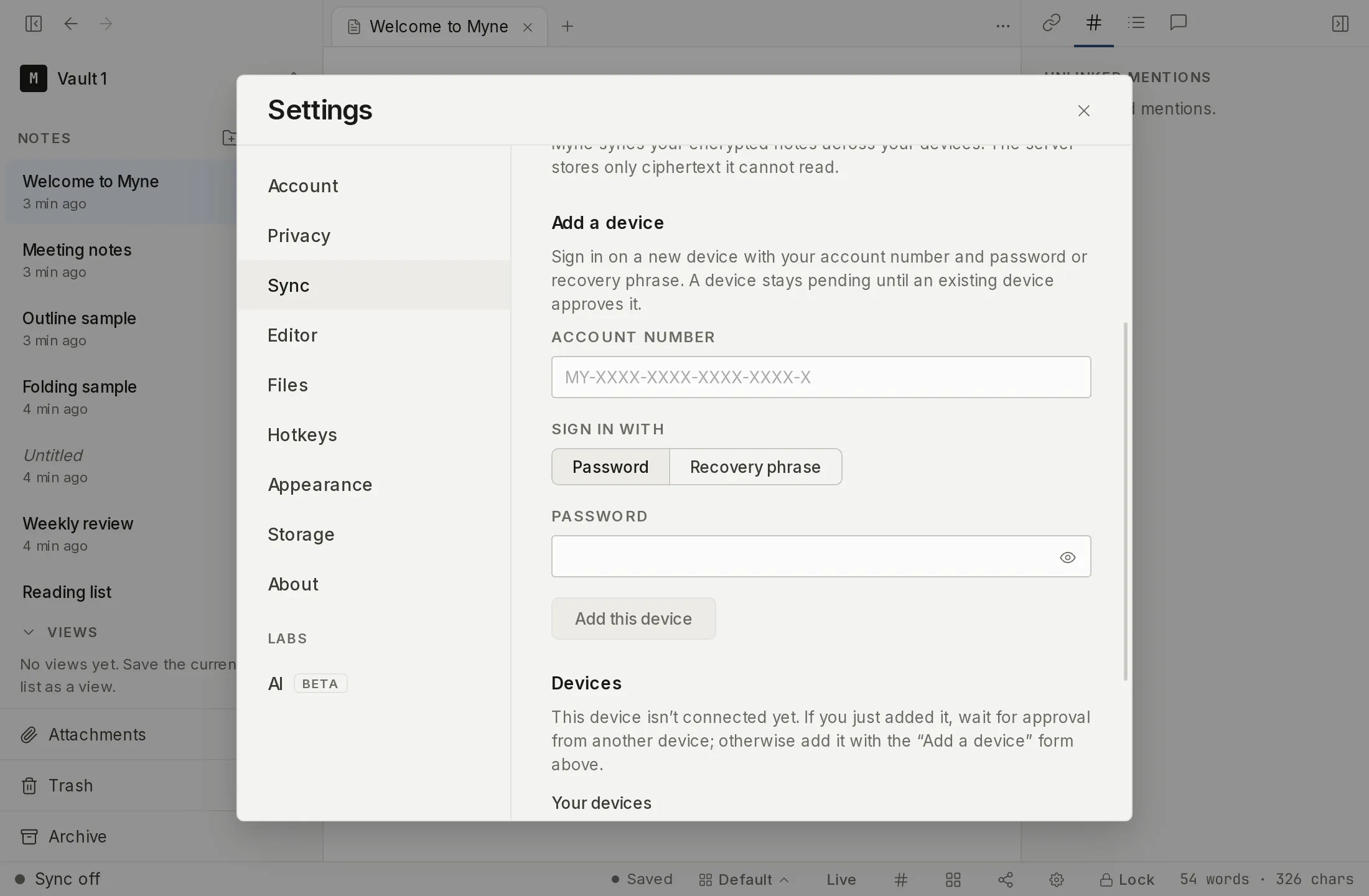
- A device that already has the vault. Open Settings → Sync. If the device is not yet a member of the account, an Add a device section appears. Enter your account number, then sign in with either your password or your recovery phrase (a 24-cell grid — you can paste all 24 words at once to distribute them). This form carries the same Name this device field, with the same suggestion and the same note that you can change it later.
As you type your account number, Myne formats it for you (grouping and the MY- prefix), so you can type or paste it in whatever form you have it.
When you submit, the device connects and, for the password path, shows that it is waiting for approval. Keep that window open. The first device on an account, and any device added with the recovery phrase, self-approve and skip the wait.
In a browser, reloading during the wait is safe: the page asks for your master password and then returns you to the same wait. It does not start the enrolment over, and nobody has to approve the browser twice.
Pair with a QR code
Instead of typing your account number on the new device, a device that is already signed in to the account can show a QR code the new device scans. The QR fills in the sync server address and account number for you. It never carries your master password or recovery phrase, so the new device still signs in with its own password and still goes through approval.
On a device that already has access:
- Open Settings → Sync and find Add a device with a QR.
- Paste your account number into the Account number field. Myne does not store your account number, so you supply it here from your own saved copy.
- Choose Make QR. A QR code appears, labelled Scan with the iOS app. The code carries the Myne mark in its centre, so the person scanning can see at a glance that it is a Myne code and not some other QR on the screen.
- On the new device, open the Myne app and scan the code. The sync server address and account number are filled in for you; enter that device’s password to continue.
On a phone the confirm step shows the server and the account number. The new device checks the server’s certificate against the public certificate authorities on its own first connection, the same check every connection gets; no fingerprint is carried by the code or compared.
The code is short-lived and refreshes while the panel is open, so a photograph of it cannot be scanned later: the new device has to read it off this screen while both are in front of you.
That freshness bound is on the join, not on the account number inside the picture. The number does not expire, and on its own it is enough to ask the sync server for your account’s encrypted key file and start guessing your master password offline. So treat the code the way you treat the account number itself: do not photograph it, and do not leave it up on a shared screen.
Once the new device signs in, it shows as awaiting approval, and the rest of the flow is the same as the manual path: approve it from a device that already has access, then compare the verification code.
Approve it from an existing device
On a device that already has access:
- Open Settings → Sync and find the new device under Devices, listed as awaiting approval.
- Choose Approve.
- Myne then shows a verification code for the new device. This is the out-of-band check: compare it against the code shown on the new device.
- If the codes match, choose They match. If they do not, choose They don’t match. That does not remove the device on the spot: it opens the same confirmation every removal on this panel goes through, headed “Remove this device from sync?” and restating what removal does and does not do. Confirm there to remove it. A mismatch can mean the server tried to seat a device you did not add, so do not leave one unresolved.
You do not have to do the comparison in the moment. Every device in the list other than the one you are using carries a Compare code action that brings the same verification screen back, so a comparison you postponed is still available later. If the code is not ready yet — the new device has not finished its first exchange with the server — the screen says so and fills in as soon as it is.
While a verification screen is open, Myne holds this device’s pushes so the value both screens read stands still. If it moves anyway, because another device pushed or because the screen was left open too long, the screen says so rather than swapping the code under you: “The code changed while you were looking. Compare both screens again. If it keeps changing, stop and do not continue.” The same line appears on both ends of the compare. Looking until two screens happen to agree is not a comparison, so start again from the code each screen shows now.
Confirm on the new device
A device you joined from the welcome screen shows the same verification code once it is approved and finishes its first sync. Compare it with the code on the approving device:
- They match, continue finishes joining, and the device starts syncing.
- They don’t match, remove this device disconnects this device from the account, so it stops trusting the synced data, and undoes the join. If the disconnect itself fails, the screen stays open and says so: the device is still enrolled with that server and should be treated as untrusted until you remove it from Settings → Sync on a device that already has access. No notes are deleted either way.
When the server refuses
Adding a device from Settings → Sync names the reason an enrolment was refused whenever naming it points at a remedy:
- This device is already waiting for approval — it is already in the queue; approve it from a device that has access rather than adding it again.
- This account has reached its device limit — free a slot first, see Managing devices.
- This account is frozen — no new device can be added until the freeze is lifted. The notes on this device are unaffected.
- The sync server’s identity didn’t match what this device expected — do not enter your credentials again until you know why. This is a mistyped address, or something sitting between this device and your server.
- This device does not have enough memory to open that vault — the vault’s encryption settings need more memory than the app can use here. Open it on a desktop computer instead.
A wrong account number, a wrong password and a wrong recovery phrase all produce the same message on purpose. Telling them apart would tell whoever is holding the device which of the three they got right. The welcome-screen path is less specific: apart from a certificate check that can refuse the join outright, it reports one message covering the server URL, the account number, the password and reachability together.
Limits
The verification code is what protects a newly added device: a fresh device has no prior history to check against, so on its first sync it cannot detect a rolled-back or forked history on its own. Comparing the code out of band, reading it off both screens, is the step that closes that gap, which is why a mismatch leads to removing the device rather than continuing, through the ordinary removal confirmation, so the destructive step is one you answer for. A mismatch is the one signal that the server or the history may be wrong, so Myne never closes that screen unless the device was really disconnected. Adding a device with your recovery phrase self-approves and so skips the pending gate; that is a deliberate, accepted trade-off. Approving a device grants it ongoing sync access to your account’s notes; if you later remove it, that revokes access going forward but does not reach back into what the device already holds (see Managing devices). A QR code changes how the new device receives the sync server address and the account number, not what has to be verified afterwards. The code carries no password or recovery phrase, so the worst a tampered or swapped code can do is point the new device at the wrong account or server, which your password cannot unlock; a bad code fails the join rather than granting access. The reverse direction is not bounded the same way: the freshness window stops a photograph of your own code being used to join later, but the account number inside that photograph never expires. The new device still signs in with its own password, still waits for approval, and still compares the verification code. Scanning the code is done in the Myne app; today that scanner is the iOS app.