Myne can keep a diagnostic log on this computer, and a place to turn it into a report you can send. The log is off until you switch it on, it stays on this device, and nothing is ever sent anywhere: you copy the details or save a file, and you decide who gets it.
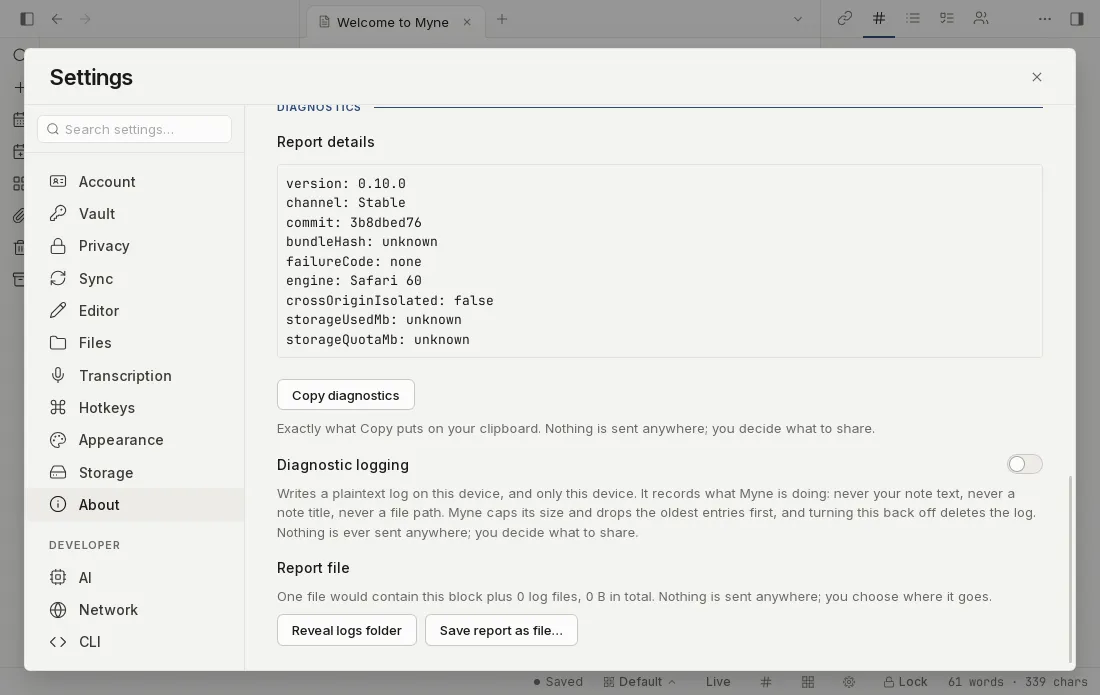
Turn diagnostic logging on
- Open Settings, then About.
- Find Diagnostic logging and switch it on.
- Reproduce the problem. Myne starts recording straight away, so there is no need to restart.
The log is a plain text file for this computer only. It records what Myne is doing: which step failed, how long something took, how many items were involved. It does not record your note text, your note titles, or your file paths.
Myne caps the file size and drops the oldest entries first, so leaving logging on does not slowly fill your disk. Switch it off and Myne deletes the log in the same moment.
Copy the details into a report
- Open Settings, then About.
- Under Report details you can read the exact block that will be copied. It names the build, the channel, the commit, the engine and whether Myne could read a failure code. The engine line names the web engine your build actually runs on, resolved from the version string the engine reports, so a report from a Mac, a Linux machine and the browser client each say which engine they were on. On desktop the block also carries a note about the two lines that read oddly there by design: the bundle hash is unknown because a desktop build has no served bundle to hash (the commit identifies it), and the storage figures measure the app window’s own store rather than the vault on disk.
- Press Copy diagnostics and paste it wherever you are reporting the problem.
Nothing in that block identifies you, your vault or your notes. If the copy fails, Myne says so rather than leaving you to paste whatever was on your clipboard before.
Save a report as a file
- Open Settings, then About.
- Report file tells you how many log files a report would contain and how big it would be. Press Reveal logs folder if you want to read the log yourself first.
- Press Save report as file… and choose where to put it.
The saved file holds three things: the same details block, every log file Myne is keeping, and the crash record if there is one. That is the single file to attach when someone asks for a report.
If Myne crashed
A crash is recorded even when diagnostic logging is switched off, because that is the case where a report is most needed and the most likely to be unrepeatable. The record holds the file and line where it happened, the Myne version and your platform. It never holds a crash message, and it never holds anything about your notes.
Only the most recent crash is kept: the next one replaces it. When a crash record exists, About shows it with the date so you know it is there, and Delete removes it. Saving a report that includes it removes it too.
Limits
- Nothing is transmitted. There is no reporting endpoint, no beacon and no automatic send. Myne makes no network request when you copy or save a report: the file exists only where you put it, and what you do with it is your choice.
- The log is plain text at rest. While logging is on, the file is readable by anything running as you on this computer, including software you would not want reading it. That is why it is off by default and why switching it off deletes it. It sits in this device’s log directory, owner-only where the operating system supports file modes.
- The log records no note content. No note text, no note title, no file path, no account number and no key material ever reaches it. Two things hold that. Myne writes only its own log records and discards the ones its libraries produce, and a check in the build fails on a call site that formats a value into the message or builds an unbounded string as a field, which are the ways content reaches a log by accident. The rest of the guarantee is a review of every call site rather than an automated test, and it is stated that way because the check covers those shapes and not the whole list.
- A crash record can exist while logging is off. It is the one thing written outside the switch. It is a single small file holding the source location (cut back to its path inside Myne’s own source tree, so a crash inside a library Myne uses cannot carry the path of the machine Myne was built on), the Myne version and your platform. It never holds a crash message. The next crash replaces it, and you can delete it at any time.
- The log keeps only Myne’s own messages. Records from the libraries Myne is built on are filtered out before anything is written, so the file holds what Myne did and not what its dependencies were doing.
- It is desktop only. The browser client can copy the details block but cannot keep a log: a page that Myne does not run cannot hold a file on your device. The mobile clients have no diagnostic log yet.
- The log does not identify your build’s commit on its own. The header names the Myne version, the update channel and your platform; the commit and the bundle hash arrive with the details block, which is why the report is saved as one file rather than by hand.