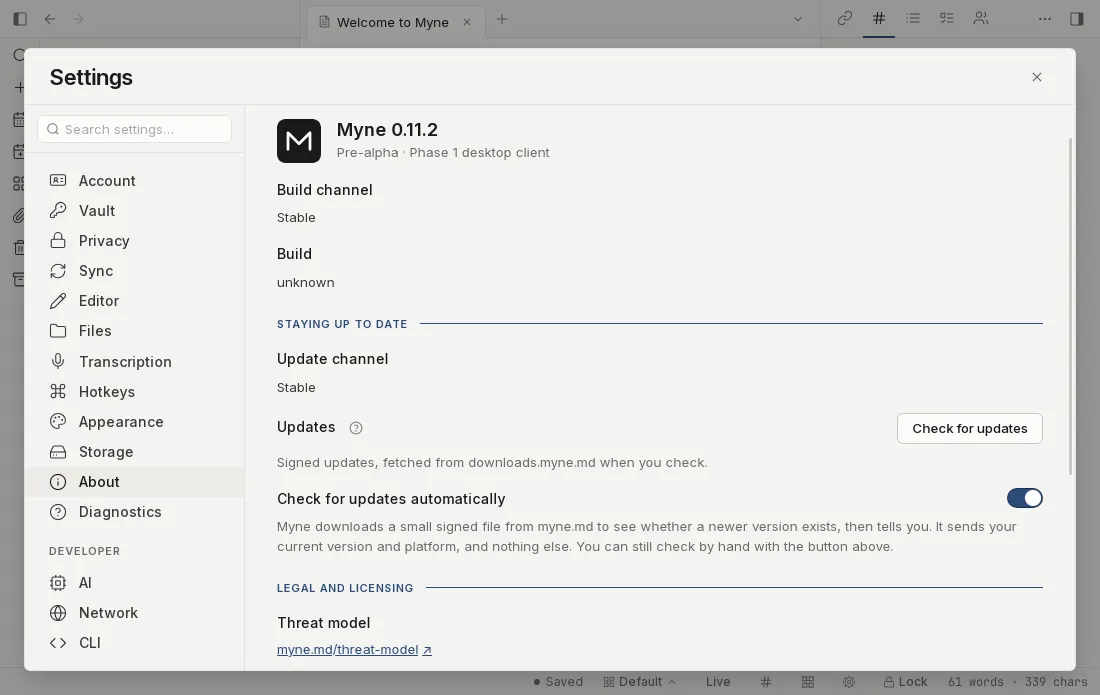
Updates are a desktop feature. Myne checks whether a newer release exists, and when one does it offers the update, installs it once you confirm, and restarts on its own. The controls live in Settings → About, and every update is verified against an offline release key before it is installed.
Prerequisites
- The desktop app. The web client and the mobile app do not update themselves this way.
- A vault open. Settings is only available once a vault is unlocked.
Where the update controls are
Settings → About holds the update controls:
- An update channel line, reading Stable or Beta. The channel is fixed when the build was made, so this copy follows the channel it was built for and there is nothing to choose here.
- A Check for updates button, to check by hand.
- A status line, reporting what the last check found.
Checking by hand
- Open Settings from the gear in the bottom bar or with
⌘,. - Choose About in the left rail.
- Press Check for updates and read the status line for the result.
The automatic check
An automatic check runs on its own, and it is on by default. It downloads a small signed file from myne.md to see whether a newer version exists, then tells you. It sends your current version and platform, and nothing else. You can still check by hand with the button above.
The check asks downloads.myne.md, carrying only your version and platform. The operator of that origin does not log IP addresses. It never carries a note, and it never carries an account.
This check is the one background request Myne makes that you have not opted into: sync only runs when you turn it on, and a remote AI provider only after you name one. Turn the check off with its switch in the same panel, and Myne then learns about a newer release only when you press Check for updates.
When an update is found
When a newer version is found, a notice appears at the bottom centre of the window. It names the version, and shows that release’s notes when the release carries them. The notice offers two actions: Update and restart and Later.
Later hides the notice for the rest of the session. It does not skip the release: the next automatic check offers the notice again on the next launch.
After a short moment the notice reduces to a small pill in the same place. Click the pill to reopen the notice.
Installing an update
Pressing Update and restart does not start the download. It expands the notice into a confirmation first, which states that your vault will be locked and that Myne will restart, and that your open notes are saved before either happens. If a note cannot be saved, the update does not start, the vault is not locked, and the notice says which step refused so you can try again.
The install then runs like this:
- Press Update and restart in the notice. The notice expands into the confirmation.
- Read the confirmation and proceed. Myne locks your vault, so the session ends, and the app switches to a full-window Updating Myne screen showing the version being installed.
- Wait for it. On a slow connection the download and install take a few minutes. Myne restarts on its own when they finish.
If the install fails, the version you were running is untouched and your notes are safe. The Updating Myne screen then offers Try again, which starts the download over, and Back to unlock, because the vault was locked before the install began.
Limits
Updates are the desktop app’s own. Neither the web client nor the mobile app updates itself this way.
The automatic check is on by default and can be turned off, but with it off Myne learns about a newer release only when you press Check for updates. Later defers the notice for the current session, not for good.
Myne verifies every update against an offline release key before installing it, so what gets installed is the release Myne signed. That check covers the update itself. It says nothing about the rest of your machine, and it does not change how your notes are stored.
An install needs a connection, and it restarts the app when it finishes, so the session you were in ends first. If it fails, the running version stays as it was and your notes are untouched. The Settings → About button is a separate door with its own behaviour: it installs without locking your vault first, so use the notice when you want the flow the steps above describe.
Shortcuts
| Action | macOS | Windows / Linux |
|---|---|---|
| Open settings | ⌘, | Ctrl , |